Vehicles
The section is intended for maintaining the list of vehicles and viewing all related information: driver assignments, services, contracts, and attached files.
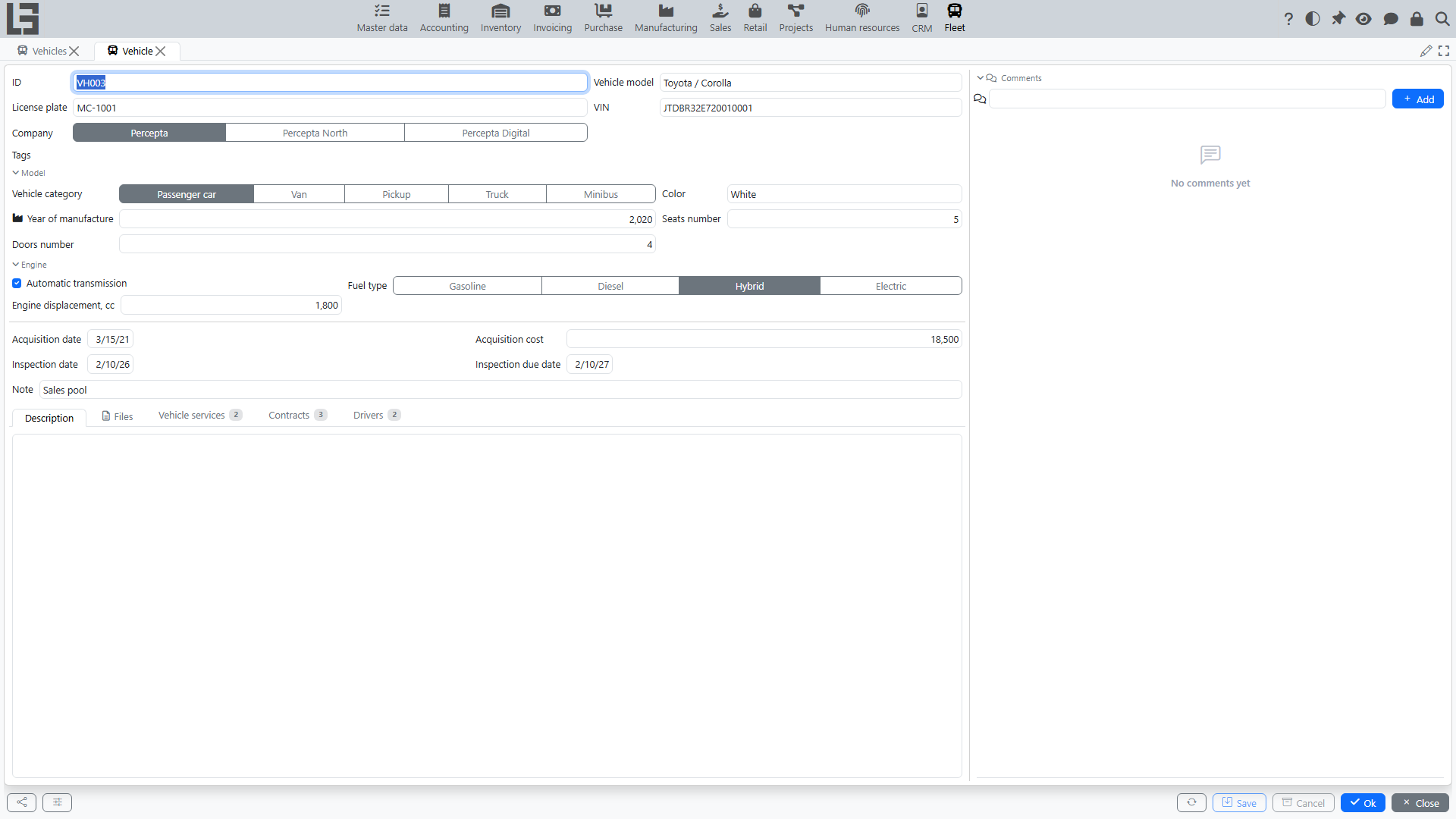
A vehicle card is an “aggregation point” for a specific car: it is convenient to control who is currently assigned to the vehicle, what services were done, which contracts are active, and to store documents.
Where to find it
Open “Fleet” → “Operations” → “Vehicles”.
To open a vehicle card, select a row in the list and use Edit (or open the record by double-clicking, if that is the practice in your organization).
Vehicles list
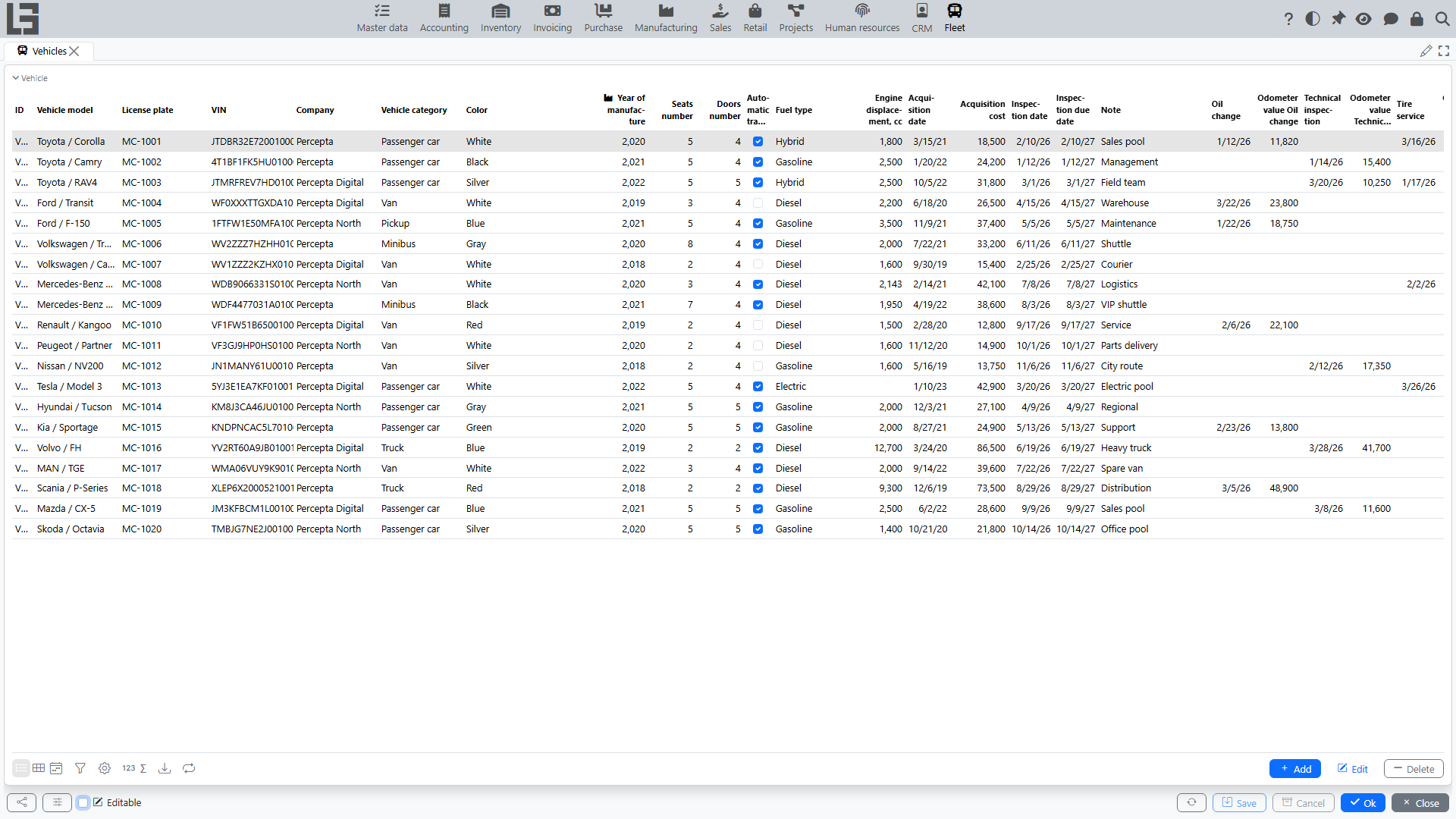
The list usually shows the main vehicle data (vehicle model, license plate, company, vehicle category, fuel type, etc.), as well as the current driver and tags.
In addition, the list can show columns for each vehicle service type (the date and odometer value of the latest service of that type) and for each vehicle contract type (the number and dates of the latest contract of that type) — the set of columns depends on the configured types and the system version.
Typical actions in the list:
- Add — add a new vehicle.
- Edit — open the selected vehicle card.
- Delete — delete the record (if permitted by rights and there are no restrictions due to related data).
For quick search and control, use filters and sorting. In practice, they most often filter:
- by company;
- by vehicle category;
- by tags;
- by current driver (if it is displayed in the list).
Creating a vehicle
- Click Add.
- Fill in required and main fields (depending on configuration):
- vehicle model;
- license plate;
- company;
- vehicle category, fuel type, year of manufacture, and other characteristics.
- Save the record.
Filling recommendations
- Vehicle model. If the required model is missing, it is usually added under “Fleet” → “Configuration” (if you have permissions).
- License plate. Enter it in a single format accepted in the organization to simplify search.
- VIN. If used, fill it in according to documents, without spaces or extra symbols.
- Category, fuel type, year of manufacture and other characteristics help build reports and plan maintenance.
Editing and deleting
To change data:
- Select a vehicle in the list.
- Click Edit.
- Make changes and save the card.
Deletion is usually restricted by permissions. Note that deleting a vehicle also deletes its driver assignments, services, files, and comments, and clears the vehicle reference in contracts. So for a vehicle with history, instead of deleting, prefer your organizational rules (for example, a note or a “Not used” tag), if this is the practice in your company.
Tags
Tags are used as additional labels for convenient filtering and control. The list of available tags is configured in Configuration.
To assign tags to a vehicle:
- Open the vehicle card.
- In the tags field, select the required values.
Examples of using tags:
- separating vehicles by purpose (company, reserve);
- status control (under repair, leasing/rent);
- quick selections in lists.
Files
You can attach files to a vehicle (for example, photos, scans of documents).
Typical workflow:
- Open the vehicle card.
- Go to the Files tab.
- Click File, choose a file and, if needed, fill in the description.
The ability to add/delete files depends on permissions.
Recommendations:
- attach documents that are important to find quickly (insurance, contract, powers of attorney, condition photos);
- in the file description, specify what the document is and for which period it is valid.
Related data on the vehicle card
The vehicle card usually contains blocks:
- Drivers — driver assignments with dates.
- Vehicle services — service and expense history.
- Contracts — linked contracts.
To add a record in a related block, use Add in the corresponding table.
The right side of the card also shows the Comments panel — use it to discuss the specific vehicle.
How to understand who the “current driver” is
The current driver is determined from driver assignments as of the current date. If an assignment is closed with an end date, after that date the driver is considered not assigned.
If the current driver is displayed incorrectly:
- Open the Drivers block in the vehicle card.
- Check the assignment start/end dates.
- Make sure the periods do not overlap and that the previous assignment is closed with an end date.