Vehicle contracts
The section is intended for accounting contracts related to vehicles (for example, rent, leasing, insurance — depending on the contract types used in your organization).
A contract can be used as a card for storing conditions: validity dates, partner, amounts (if applicable), and the link to a specific vehicle.
Where to find it
Open “Fleet” → “Operations” → “Vehicle contracts”.
The list shows contracts whose type allows linking a vehicle.
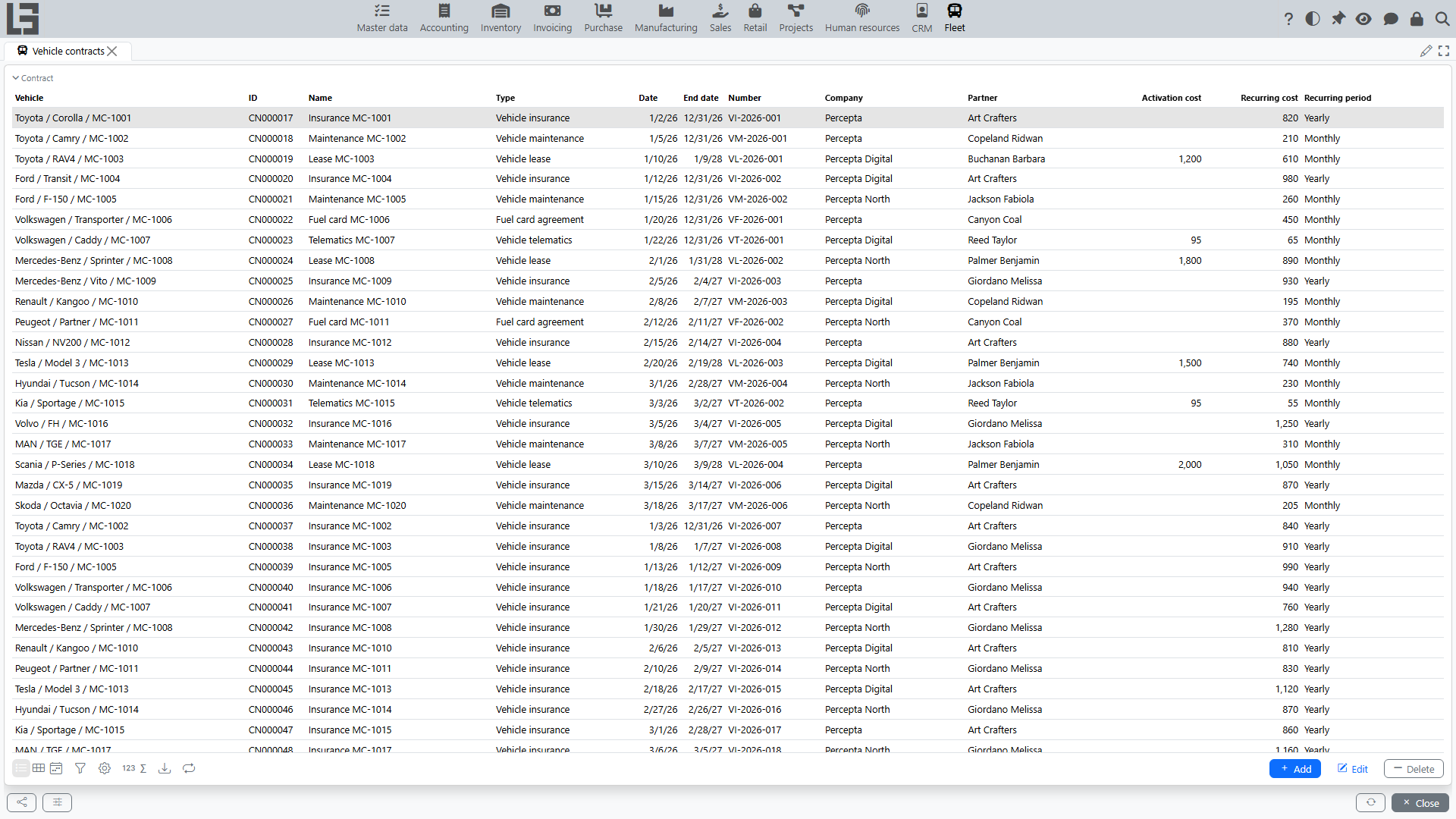
Creating a contract
You can create a contract:
- from the “Vehicle contracts” list (use Add);
- from the vehicle card (in the Contracts block — use Add).
The recommended option for “linking to a specific vehicle” is to create a contract from the vehicle card: then the vehicle field will be filled automatically.
When filling in, specify:
- contract type (if exactly one contract type exists in the system, it is pre-filled automatically; otherwise select the required type);
- Date (required) and the end date;
- Number (required);
- Company and Partner (required; the company is pre-filled with the default one);
- amounts (for example, Activation cost and Recurring cost with the Recurring period — if provided by the contract type).
The contract card also has the Text tab (for the contract text), the Files block (attachments — scans, annexes), and the Comments panel.
Contract type and availability of the “Vehicle” field
In some organizations, not all contract types imply a link to a vehicle. Then:
- the vehicle selection field may be hidden or unavailable;
- when trying to specify a vehicle for an inappropriate contract type, the system may show a message: “The chosen contract type does not allow to select a vehicle”.
If you encounter such a restriction, check whether the contract type is selected correctly, or contact the administrator to configure types.
Validity dates and expiration control
To control active contracts, it is important to fill in the start and end dates. If a contract has ended but the end date is not filled in, it may appear in selections as “active”.
If the contract uses periodic payments (for example, a monthly payment), also fill in the Recurring period — this helps interpret the conditions correctly.
Viewing contracts on the vehicle card
The vehicle card shows a list of related contracts. This is convenient for controlling dates and conditions for a specific vehicle.
From there it is also convenient to:
- quickly open the contract card;
- add a new contract related to the selected vehicle (use Add).