Sales orders
Where to find
Open “Sales” → “Operations” → “Sales orders”.
Purpose
A sales order records:
- the customer and sales terms;
- the order contents (lines);
- prices, discounts, and taxes;
- the scheduled date (the planned shipping date);
- links to shipments, invoices, manufacturing orders, and purchase orders (if such scenarios are enabled).
Sales order list
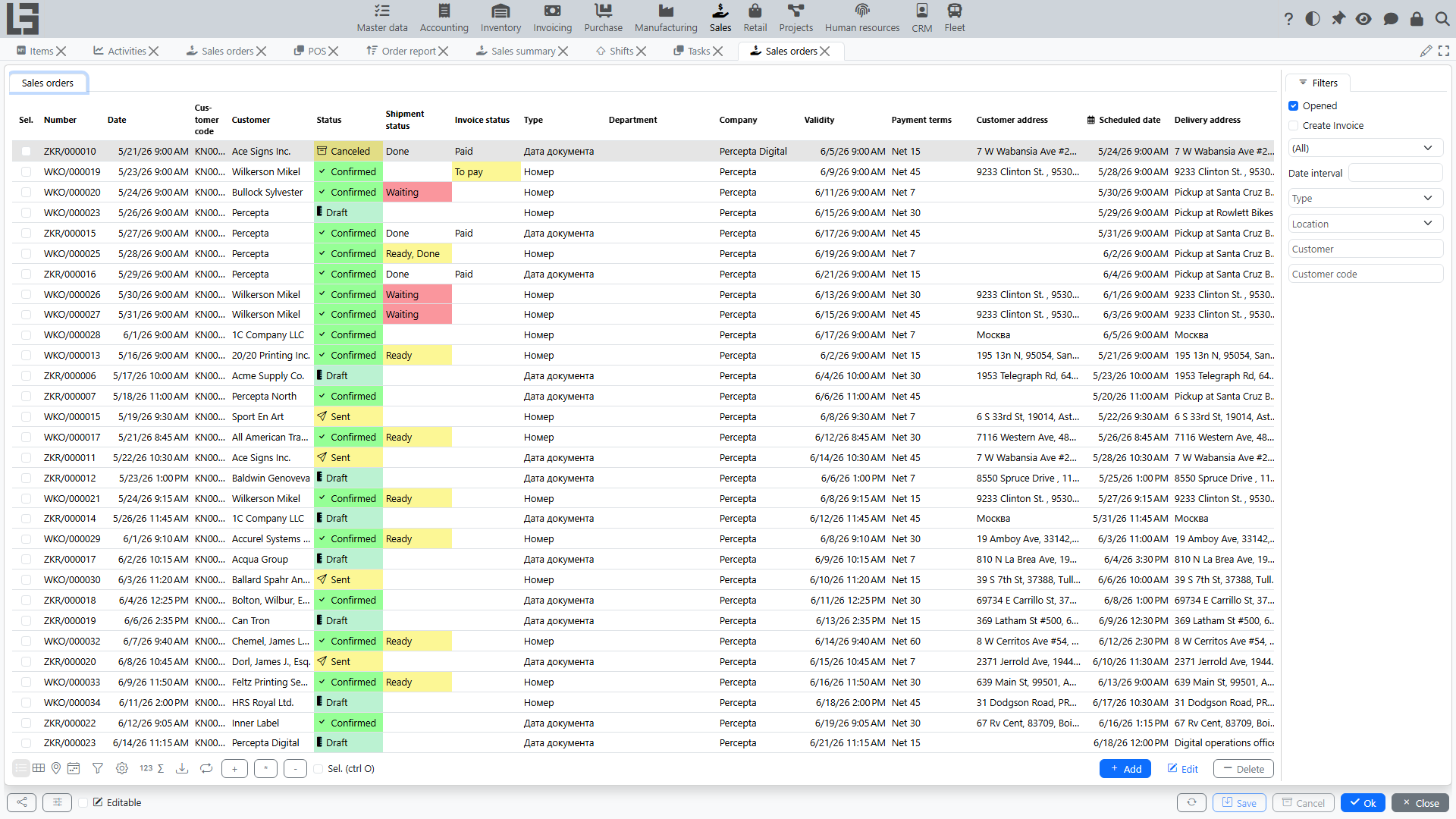
In the list, you typically see:
By default, the “Opened” filter is enabled — it hides locked orders.
Filters and the set of columns depend on your configuration.
Sales order card
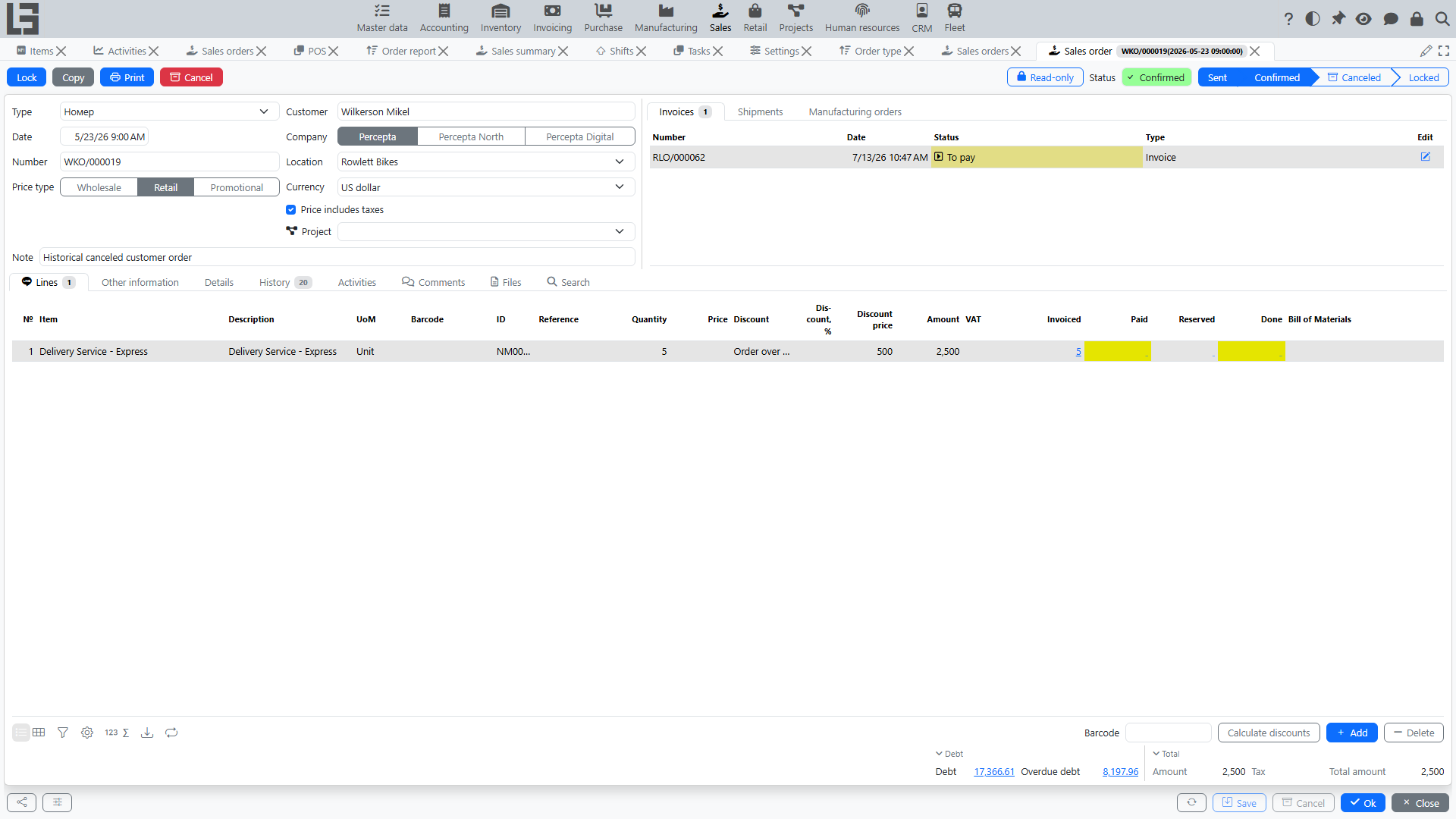
Main fields
Typically, the card includes:
- Customer;
- Date and Scheduled date;
- Location;
- Delivery address (if used);
- Type — the order type; the field is required and is filled in automatically when only one type exists;
- Our representative — the company employee responsible for the order; defaults to the current user if they are linked to an employee.
The “Copy” action on the card creates a copy of the order. The card footer shows the customer’s “Debt” and “Overdue debt”; clicking a value opens the debt details.
Order lines
In lines, you specify:
- item;
- quantity;
- price;
- discount (if used);
- line amount.
Recommendation: fill in the customer and location first, then add lines — this helps the system select prices and availability more accurately.
Confirmation and cancellation
An order moves through the statuses Draft → Sent → Confirmed → Locked, and can be Canceled from any status except Draft and already canceled orders.
For details on statuses, transitions, and restrictions, see: Sales order workflow and statuses.
Related documents
The order card shows related documents as tabs:
Purchase orders are shown not as a tab but as a “Purchase orders” link in the card footer.
The available tabs depend on enabled modules.