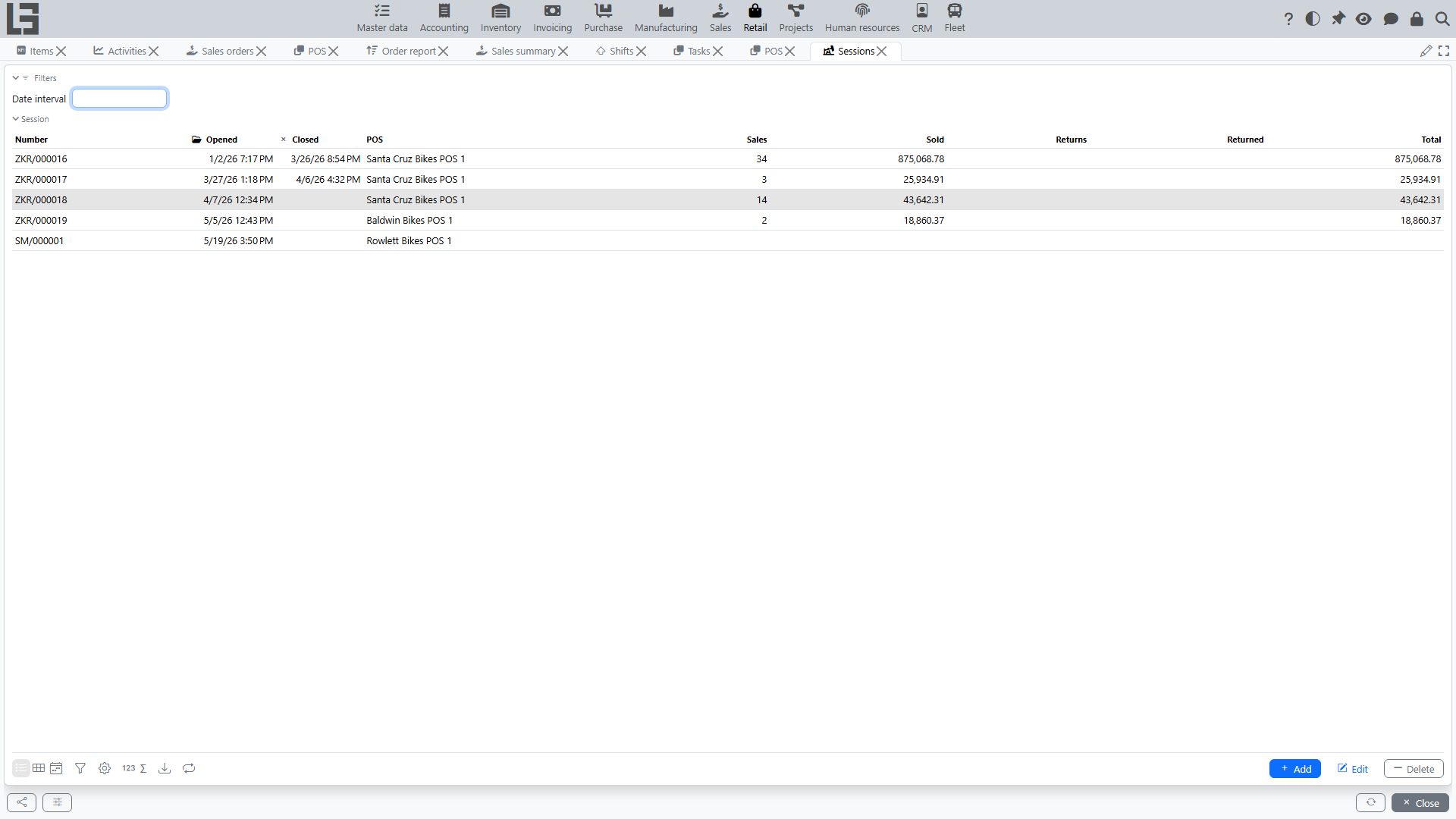
Sessions
A session is the period of cash register operation between opening and closing. Sales and returns in POS are processed within an open session.
Where to find it
“Retail” → “Operations” → “Sessions”.
How to open a session
A session is opened from the POS screen, not from the session list:
- Open “Retail” → “Operations” → “POS”.
- On the Session tab, select the cash register.
- Press “Open session”.
The system records the opening date and time and assigns the session number.
Restrictions
- You cannot open a session if there is already an open session for the cash register — the system shows “There is already an open session”.
How to close a session
On the POS screen, press “Close session” on the Session tab and confirm.
The system records the closing date and time.
Closing first discards the current unfinished receipt — finish or deliberately abandon it before closing.
What a session shows
A session aggregates the operations performed at the cash register while it was open:
- “Sales” — the number of sales;
- “Sold” — the total amount of sales;
- “Returns” — the number of returns;
- “Returned” — the total amount of returns;
- “Total” — sales minus returns;
- the net amount for each payment method (sales payments minus return payouts);
- the “Cash receipts” and “Refunds” lists;
- cash deposits and withdrawals are also registered against the open session; their lists and the “Cash at the checkout” balance (kept per cash register, not per session) are shown on the Session tab of the POS screen.
The standalone “Retail” → “Operations” → “Sessions” list is used to browse and review sessions — the sales and returns count and amount columns are shown there. It also allows manual New, Edit, and Delete; note that creating a session here does not run the POS “Open session” checks (duplicate open session, fiscal opening), so opening from POS remains the normal workflow.