Vendor pricelists
Where to find
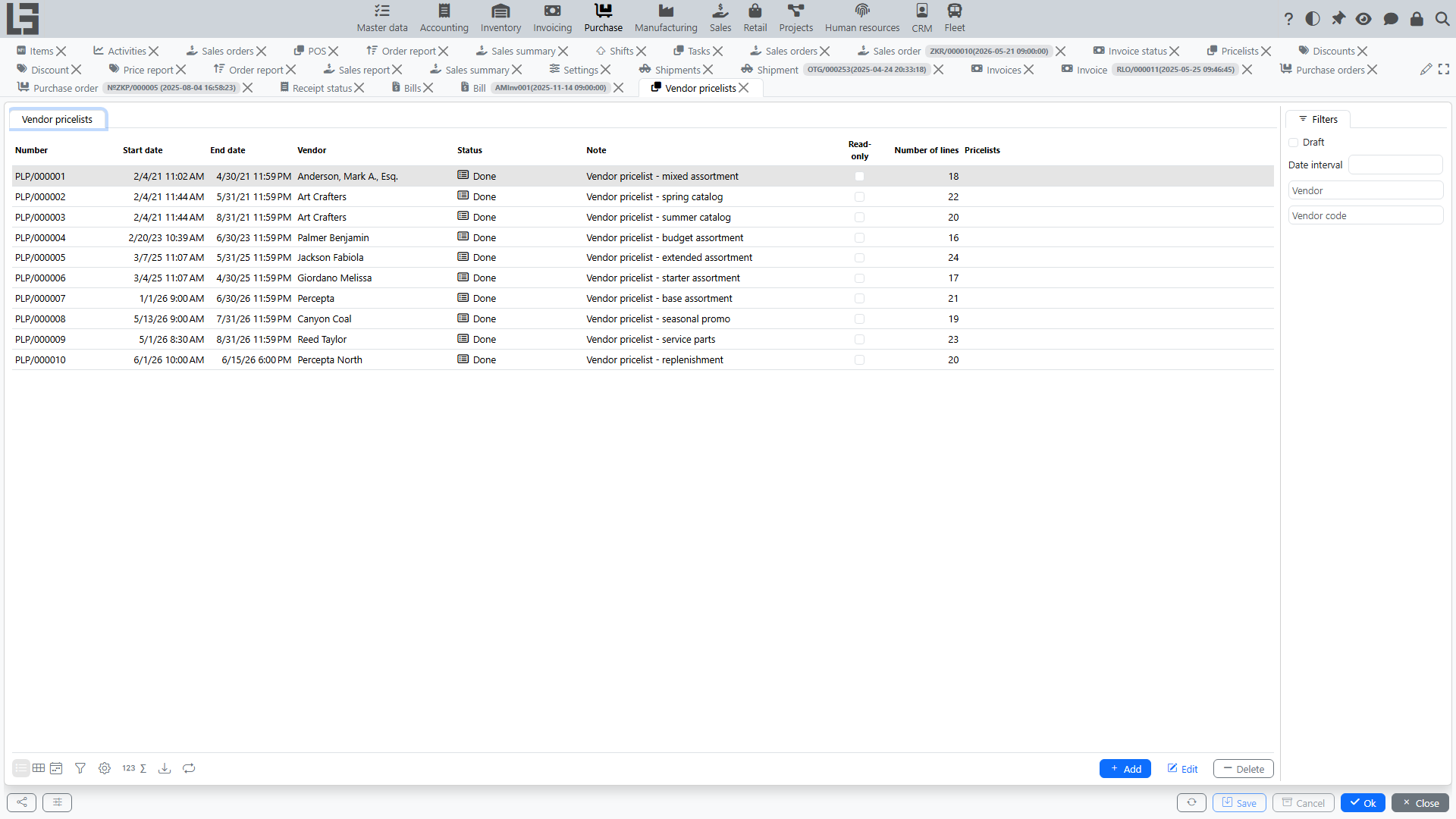
Forms for working with pricelists are usually located at “Purchase” → “Operations” → “Vendor pricelists”.
Purpose
A pricelist stores vendor prices and is used for:
- preparing purchase prices;
- filling in prices when creating purchase orders and vendor bills;
- recording price changes by periods.
Pricelist structure
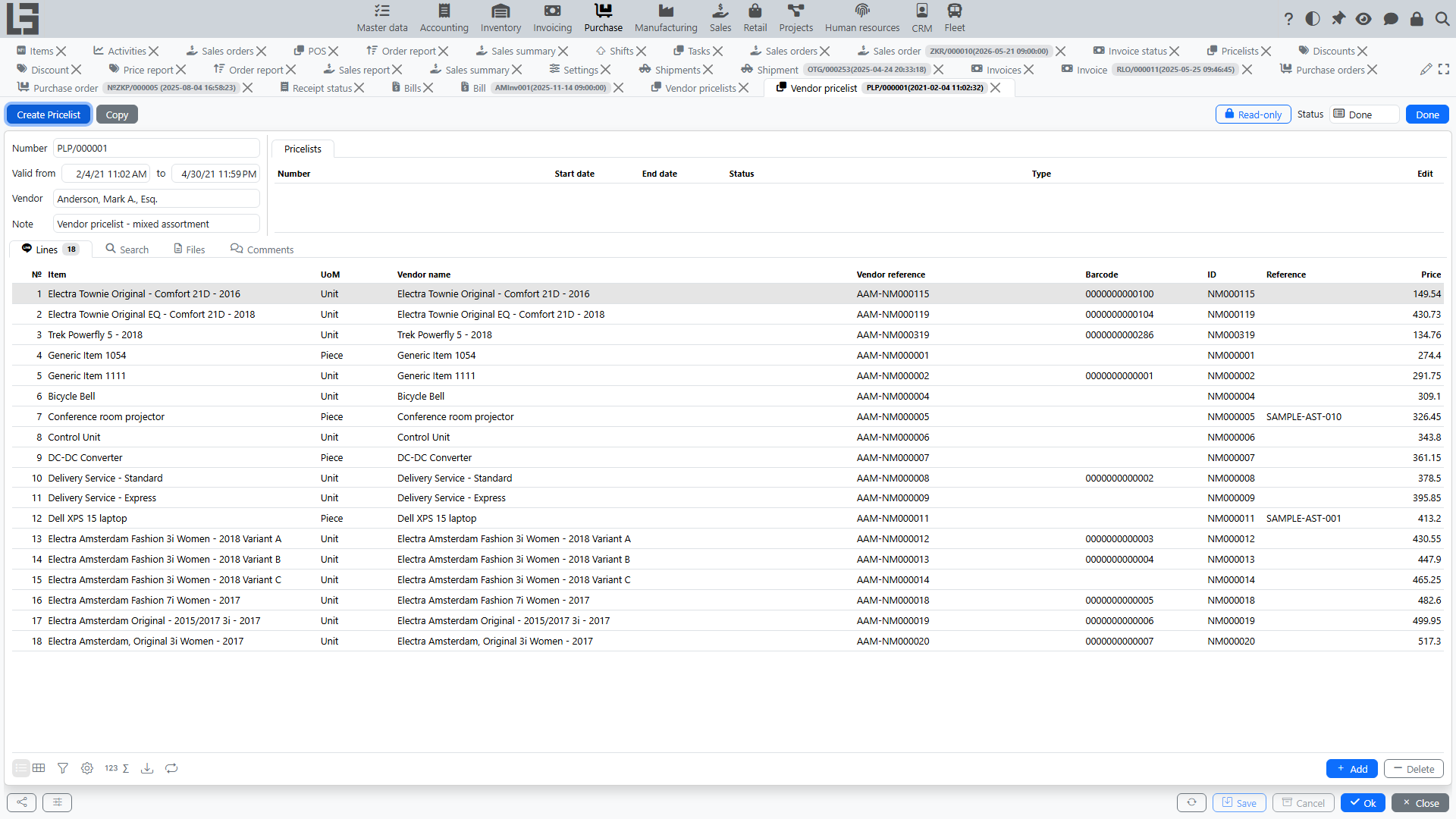
In a pricelist, you typically specify:
- vendor;
- validity period (start/end date);
- note.
Pricelist lines
In lines, you specify:
- item;
- price;
- if needed — the vendor's own item name and code (columns “Vendor name” and “Vendor reference”).
Lines can also be added on the “Search” tab of the pricelist card: it shows the category tree and the item list with an editable “Price” column — enter a price for an item to add it to the pricelist.
If the vendor is flagged “Other units of measure”, the lines also show a “UoM (partner)” column. This unit of measure is carried into purchase orders, and the price is recalculated by the ratio between the item's unit and the vendor's unit.
Comments and files
The pricelist card may contain a comment feed:
- add comments to record agreements and the source of prices;
- view the date/time and author of comments;
- edit and delete your own comments (others' — only with the Manage all comments flag on the employee card); edits are marked as “Edited”.
The “Files” tab stores files attached to the pricelist (for example, the source file of an import).
Pricelist statuses
A pricelist usually goes through two statuses:
- Draft — price values can be edited; the pricelist list can be filtered by the “Draft” filter.
- Done — the pricelist is in effect; prices become a source for substitutions into purchase orders.
The transition to “Done” is performed via the “Mark as Done” action on the pricelist card.
A pricelist becomes read-only if its status is marked “Read-only” in the purchase settings (“Purchase” → “Configuration” → “Settings”); in addition, any pricelist can be locked manually with the lock toggle on its card.
How prices are applied
When prices are filled into documents:
- only pricelists in the “Done” status whose validity period covers the document date are considered;
- if several pricelists match, the one with the latest start date is used;
- if no pricelist price is found, the item cost is used as a fallback.
Prices are substituted into purchase orders and vendor bills. The current pricelist also defines the default vendor when purchase orders are created automatically for items to be ordered.
Importing prices from an external source
If a pricelist import type resolves for the vendor (its own or the default one), the pricelist card for this vendor shows an “Import” action:
- In “Purchase” → “Configuration” → “Settings”, create/select a pricelist import type and define its script (for example, an XLSX/CSV parser or an external-API call).
- On the import type edit form, open the “Vendors” tab and check “Incl.” for this vendor.
- Create a pricelist for this vendor and click “Import” — the script populates the lines automatically.
The “Import” action appears whenever an import type resolves for the pricelist — the vendor's own type or the default one; for a read-only pricelist the action is disabled.
Importing a pricelist
You can import pricelist lines from an external file using configurable import types.
Import types
Open “Purchase” → “Configuration” → “Settings” and use the Pricelist import types block to manage import types. For each type you can specify:
- Name — what users see when selecting the type;
- Script (the “Script” tab) — optional script executed by the “Import” action; the “Generate” action builds a ready-made XLS import script from the column letters and the start row;
- Prompt (the “Import (GPT)” tab) — instructions sent to GPT (filled with a sensible default via the “Default” action).
On the import type edit form you can also:
- mark the vendors that should use this type (the “Vendors” tab, “Incl.” checkbox) — each vendor can have only one import type at a time;
- mark the type as Default (switch) — this is the fallback used for vendors that do not have their own import type assigned.
Default import type
If a pricelist's vendor has no import type assigned, the system uses the import type marked as Default on the import type edit form. The Import button on the pricelist card appears whenever an import type (vendor-specific or default) is available.
GPT-based import
When the import type has a GPT Prompt defined, the regular “Import” action additionally runs the GPT import (“Import (GPT)” is the tab on the import type form where the prompt is defined). The action:
- opens a dialog to select an item category — reference data is limited to that category;
- asks you to choose the source file;
- sends the file together with reference data (current vendor, other vendors, items, and previously used vendor names/SKUs) to OpenAI;
- reads the returned JSON and creates pricelist lines; besides the lines, it can fill header fields (validity period, vendor) from the file;
- attaches the source file to the pricelist (the “Files” tab).
The default prompt instructs the model to include every line from the source file in the output, even when an item cannot be matched — in that case the item field is left empty while vendorReference, vendorName, and price are still filled. This way you do not lose lines that need manual item mapping after import.
Copying a pricelist
If you need to quickly create a new pricelist based on a previous one (for example, for a new period), use copying:
- a new pricelist is created;
- header fields and lines are copied;
- then you can update the validity period and adjust prices.
Creating a sales pricelist
For a pricelist in the “Done” status, the card shows a “Create Pricelist” button (available when a sales pricelist type is set in the purchase settings, field “Type of price list for sale”). It creates a sales pricelist from the pricelist lines; the linked sales pricelists are shown on the “Pricelists” tab of the card.