Timesheets
This page describes the timesheet forms:
- Supervisor timesheet — to control and adjust employees’ effort by days within the selected project.
- Supervisor timesheet mobile — a simplified one-day variant of the supervisor timesheet for a phone.
- Employee timesheet — to enter and view effort by tasks (usually within the selected project).
Timesheets work based on time entries data. If your organization tracks time strictly by tasks and projects, timesheets help you quickly fill in/check hours without switching to separate lists.
For details about the time records themselves, see Time entries.
General principles
The desktop forms (the supervisor and employee timesheets) use common elements:
- Period — a date interval (typically a month). The header usually contains buttons to move to the previous/next month. The mobile timesheet works with a single day instead of a period.
- Project — limits tracking and viewing hours to a specific project.
- Time entry type — a work type (for example, “Development”, “Analysis”, “Support” — the exact list depends on settings).
- Hours template (if used) — allows quickly inserting a typical hours value during input.
How hours are entered
Hours are entered directly in the table.
Two options are typically available:
- Manual input — you enter the number of hours for the selected day.
- Quick input using a template — if an hours template is selected, the system inserts its value. Applying the same template again to a filled cell deletes the record.
If you clear the hours value (make it empty/zero), the corresponding time entries for that day may be deleted (depending on tracking rules).
If the autosave hours setting is enabled (“Auto save timesheet hours”, configured in Projects → Configuration → Settings), cell changes are saved to the database immediately — this applies to both timesheet forms.
Day highlighting
For easier control, the table usually uses highlighting:
- the current day is highlighted separately;
- weekends may be highlighted with a different color;
- if an employee has time entries of different types on the same day, the day may be highlighted as “requires attention”.
Supervisor timesheet
Open Projects → Processes → Supervisor timesheet.
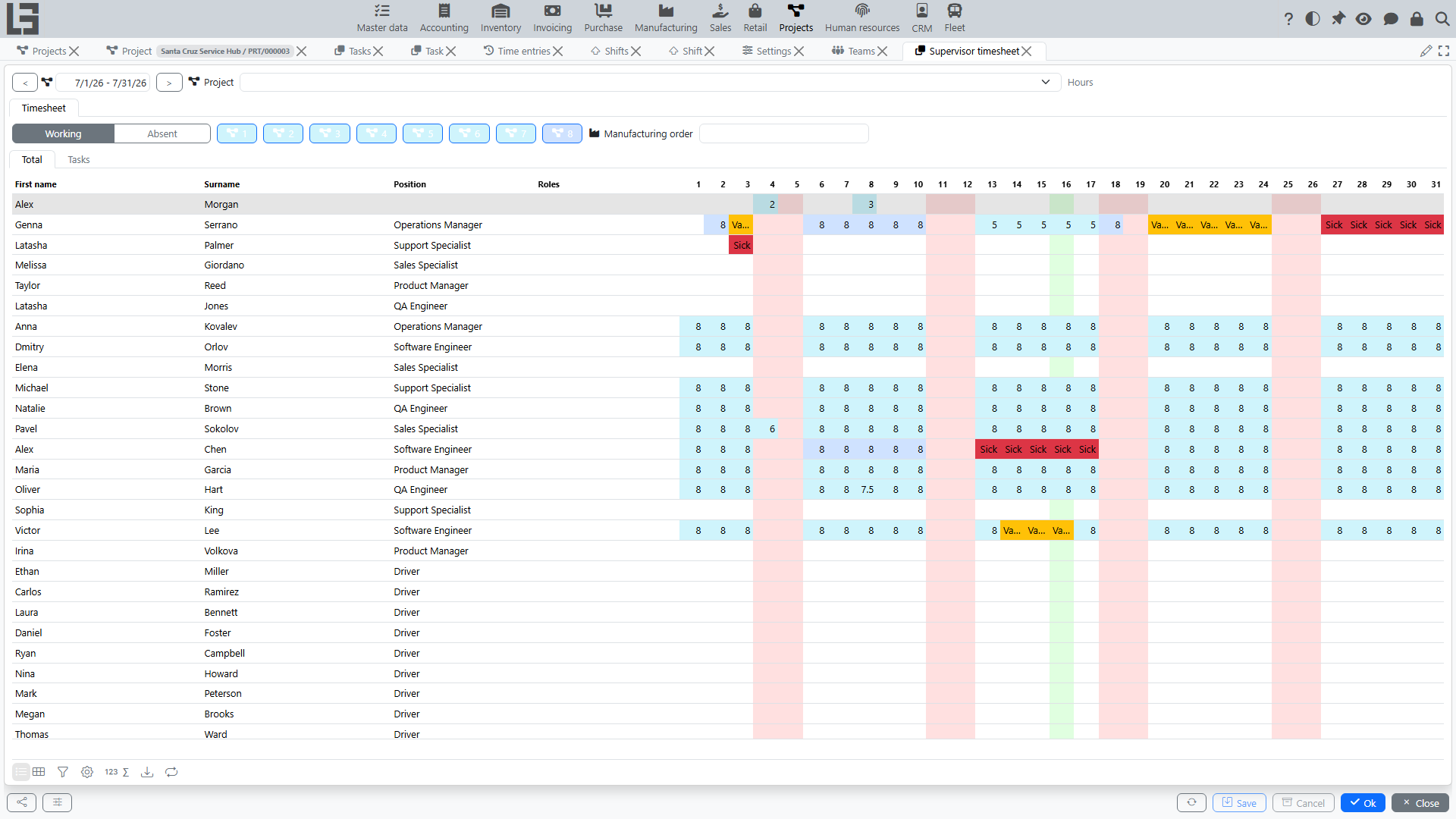
Purpose
The form is intended for supervisors and managers who need to:
- control whether employees fill in their time;
- quickly see workload by days;
- if needed, adjust hours within the project.
What is displayed
The timesheet displays a table:
- rows — employees;
- columns — days of the selected period;
- values — hours.
Additionally, the employee row may show position and project roles (if roles are maintained).
Employee list limitation
The employee list in the timesheet is typically formed from:
- active participants assigned to the selected project in the selected period;
- employees who already have hours/time entries for the selected project in the selected period (regardless of their active status);
- if the selected project has no assignments at all — all active employees (for a user with all-projects access: the “Access to all projects” flag or no direct assignments — see access to projects).
Input and actions
When you edit a cell (day/employee), the system:
- creates/updates a time entry of the required type — if a time entry type is selected on the form (and a project is selected, or the existing entry for that day is not yet linked to a project);
- opens a form with the list of time entries for that day and employee — in other cases (primarily when no time entry type is selected).
If hours templates are configured for the selected type, template buttons are shown next to the type — clicking one puts the template hours into the selected cell.
Copying and clearing hours (context menu)
In the supervisor timesheet, day actions are usually available via the context menu on a day cell:
- Copy — first clears the selected day, then copies into it all time entries from the nearest previous day with records. The employee, project, type, and hours are carried over; the task link, hours template, and description are not copied.
- Clear — deletes all time entries for the selected day.
The actions apply to the whole day — to all employees within the selected project (or to entries without a project when no project is selected), not to an individual cell.
If the autosave hours setting is enabled (see above), changes are saved immediately, so Clear always asks for confirmation, and Copy asks when the target day already has records (they will be deleted).
Entering hours by task
The employee table in the supervisor timesheet has two tabs: Total and Tasks. On the Tasks tab you can select a specific task (an open one belonging to the selected project) and enter hours for it; the cells then show the hours for the selected task against the employee’s total hours for the day.
Typical situations
Entering hours opens a time entry list
The list of time entries opens if no time entry type is selected on the form (and also if no project is selected while the day’s records are already linked to a project). This is usually needed when there are already records for the selected day and more detailed information is required (for example, distribution by tasks).
What to do:
- Open the time entry list shown by the system.
- Check which work/tasks already have records.
- If needed, adjust hours or the type/project of the record.
Supervisor timesheet mobile
Open Projects → Processes → Supervisor timesheet mobile.
A simplified variant of the supervisor timesheet for working from a phone:
- a single day is selected; buttons move one day or one week back/forward;
- the list shows active employees assigned to the selected project as of the current date (or all active employees — for a user with all-projects access — when the project has no assignments);
- hours are entered per employee for the selected day (when a time entry type is selected);
- hours template buttons and the day Copy / Clear actions (with confirmation) are available;
- changes are saved immediately.
Employee timesheet
Open Projects → Processes → Employee timesheet.
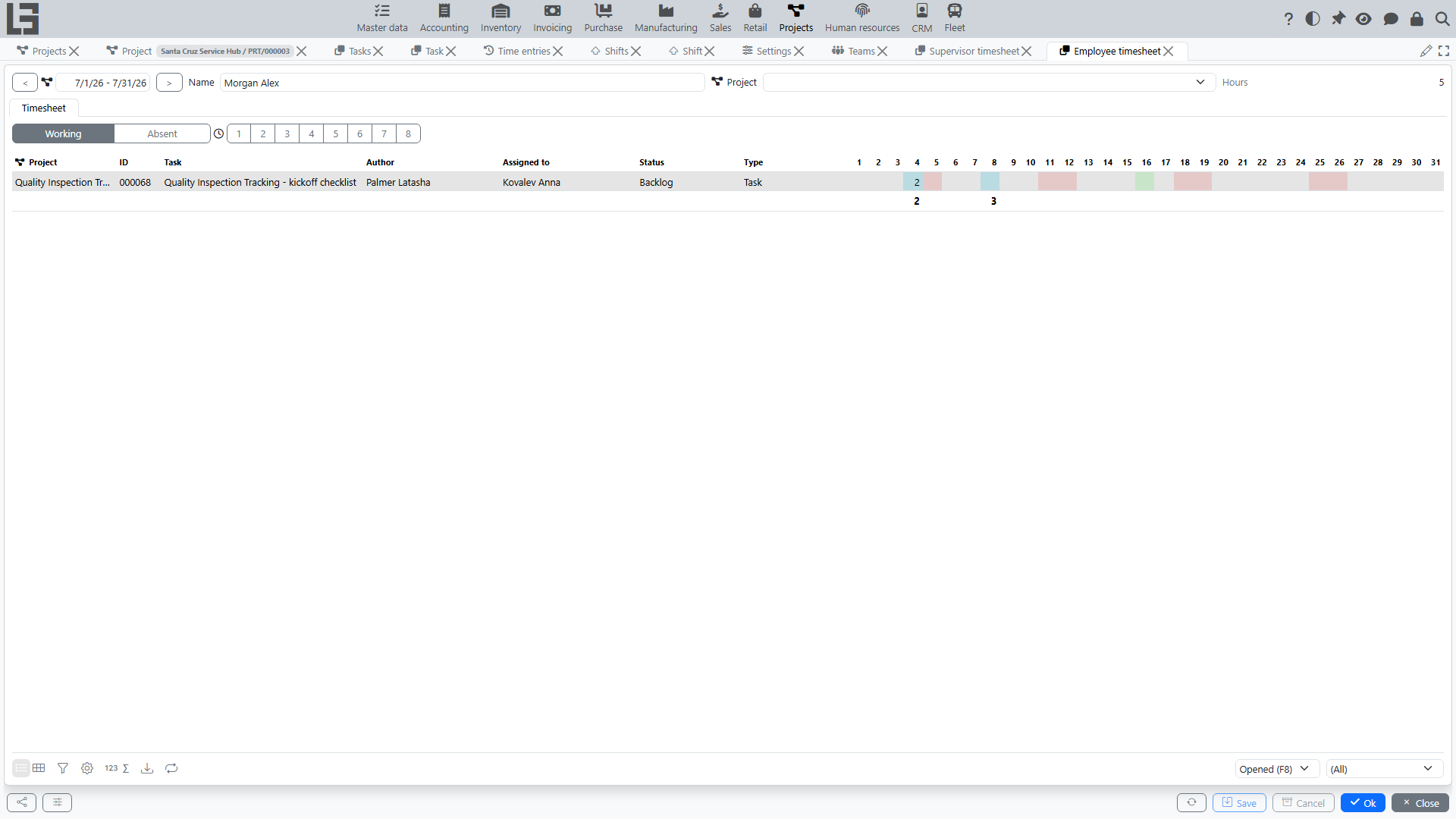
Purpose
The form is intended for employees and helps to:
- enter hours for tasks daily;
- see which tasks have time entered and on which days;
- control timesheet completeness for the month.
What is displayed
The employee timesheet shows a task list and an hours table:
- rows — tasks;
- columns — days of the selected period;
- values — hours by task.
Task details may also be shown (name, author, assignee, status, type). If no project is selected, the task project may also be shown.
The period total and the daily footer sums are calculated over all of the employee’s time entries, not only the selected project, so the total can be larger than the sum of the visible rows.
Employee selection
Usually, the current user is selected by default. A user with all-projects access (the “Access to all projects” flag or no direct assignments) can switch the employee (for example, to help fill in the timesheet or for control).
Task selection
The timesheet shows tasks that:
- belong to the selected project (if a project is selected);
- belong to projects the employee is assigned to in the selected period, or already have hours entered by the employee for the period;
- tasks of projects with no assignments at all are additionally visible to a user with all-projects access;
- match filters by state and ownership.
Typically available filters:
- Opened / Closed — by task state;
- My tasks — where the employee is the author;
- Assigned to me — where the employee is the assignee.
Entering hours
When you edit a cell (day/task), the system creates or updates a time entry.
Recommendations:
- select the project first (if time tracking is strictly project-based);
- then work with tasks of that project;
- enter time as close as possible to the actual work date.
Permissions and restrictions
Timesheet availability depends on permissions:
- an employee usually sees only their own timesheet;
- a supervisor/manager may see the timesheet for employees of the project;
- “all projects” access expands the data set available for viewing and (in some cases) editing.
If you do not see the required project, employees, or tasks, check:
- the selected period;
- the selected project;
- the assignment to the project and whether the participation period is valid;
- filters on the form;
- access permissions.