Shifts
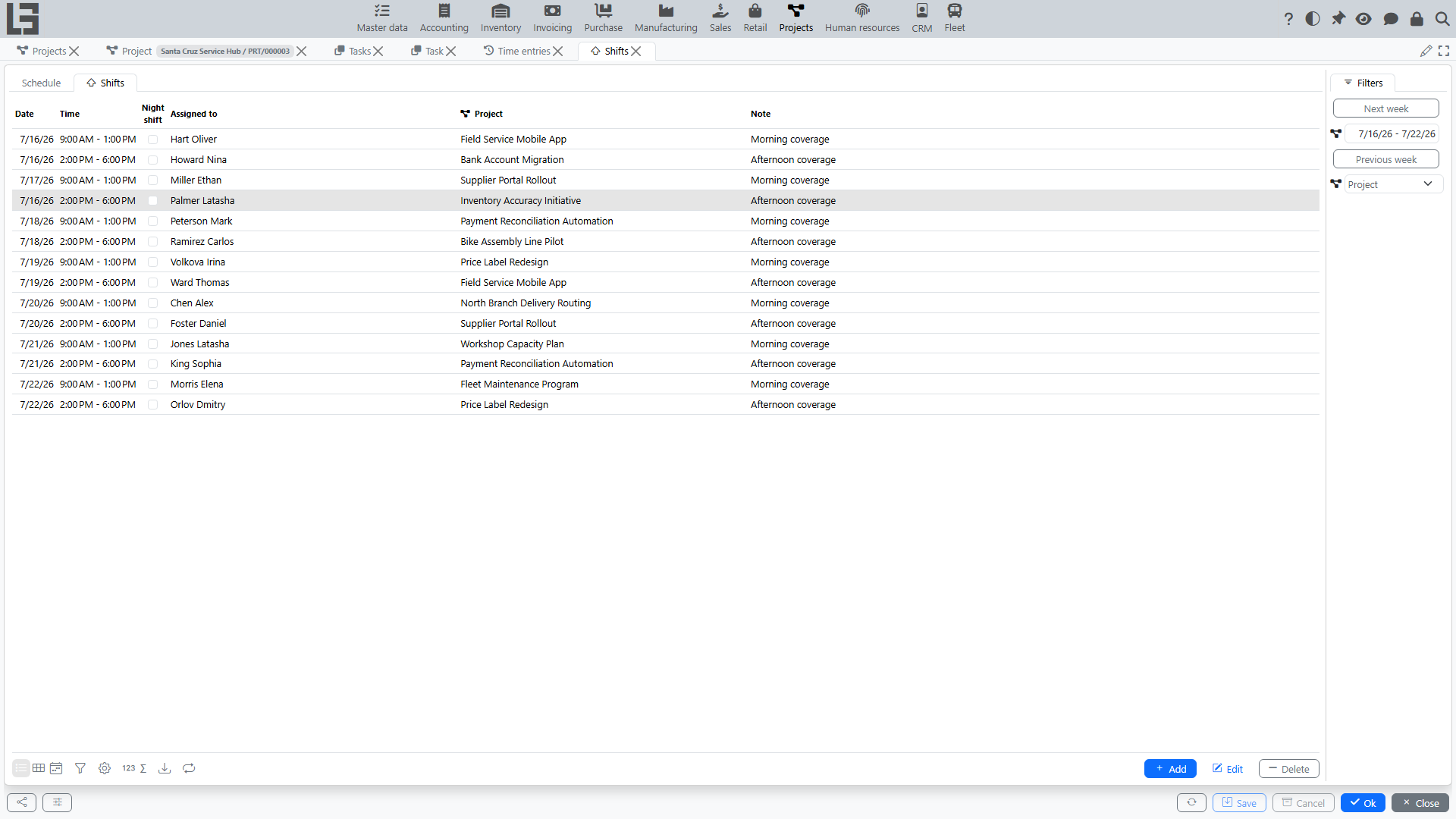
The Shifts feature is used to plan employee work shifts: who works, on which date, during which time interval, and — optionally — on which project.
Where to find it
Open Projects → Operations → Shifts.
The screen opens on the upcoming week (a 7-day interval starting from the current date) and has two tabs:
- Schedule — a visual weekly board for planning shifts;
- the shift list — a plain table of shift records.
Use the Previous week / Next week buttons, or the date interval field, to move between weeks. Both tabs show the shifts of the selected period.
Shift card
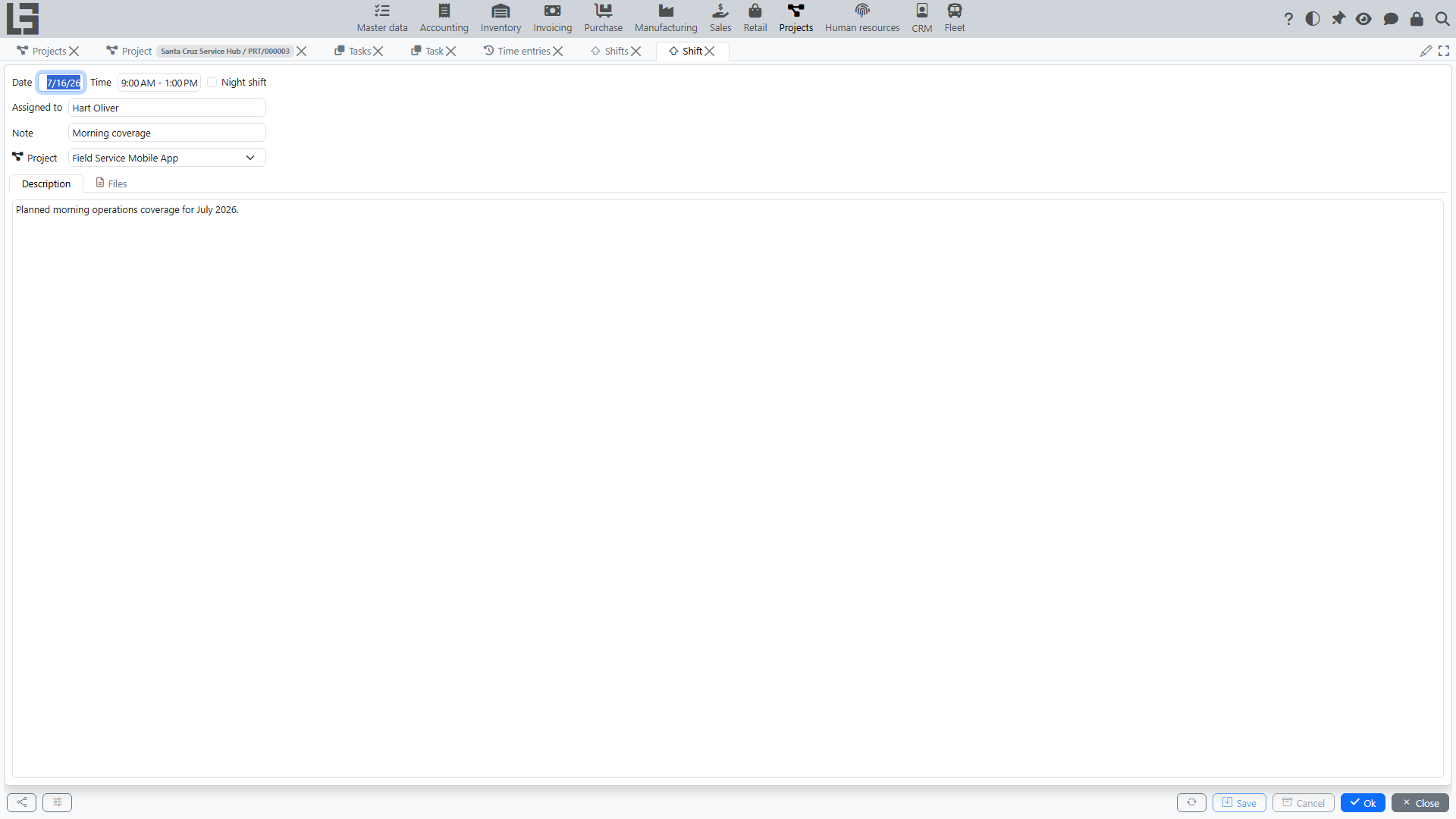
A shift contains:
- Date — the day of the shift;
- Time — the start–end time interval;
- Night shift — marks a shift that crosses midnight (see Night shifts);
- Assigned to — the employee who works the shift;
- Project — the project the shift relates to (optional);
- Note and Description;
- attached files.
To open a shift, double‑click it in the list (or use Edit).
Night shifts
A night shift runs across midnight — for example, from 22:00 to 06:00 the next day.
Because the time field does not allow the end time to be earlier than the start time, a night shift is entered like this:
- Enter the Time interval normally, with the smaller value first — e.g.
06:00–22:00. - Tick the Night shift checkbox on the shift card.
On the Schedule board the shift is then shown reversed, with a next‑day marker — 22:00-06:00 (+1). The shift list and the shift card show the interval as entered, with the night shift marked by the Night shift checkbox.
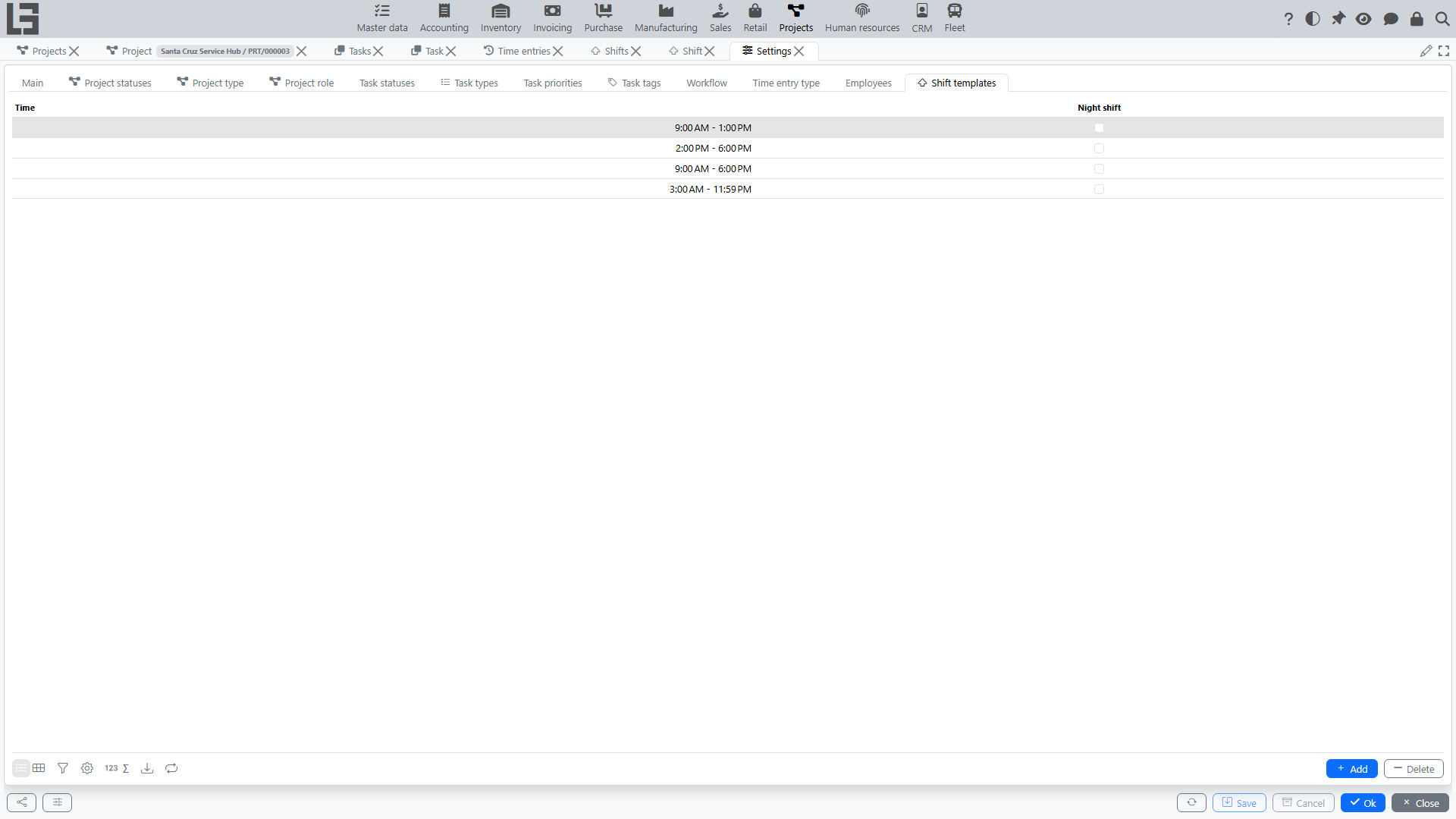
A shift template can also be marked as a night shift (on the “Shift templates” tab of Settings). A shift created from such a template inherits the night‑shift mark, so you can plan night shifts by drag‑and‑drop on the Schedule as usual.
The Schedule view
The Schedule tab shows the selected week as a board — rows are employees, columns are days. The rows show employees who have shifts; shifts without an employee fall into the Unassigned row. A row of shift templates is shown above the board.
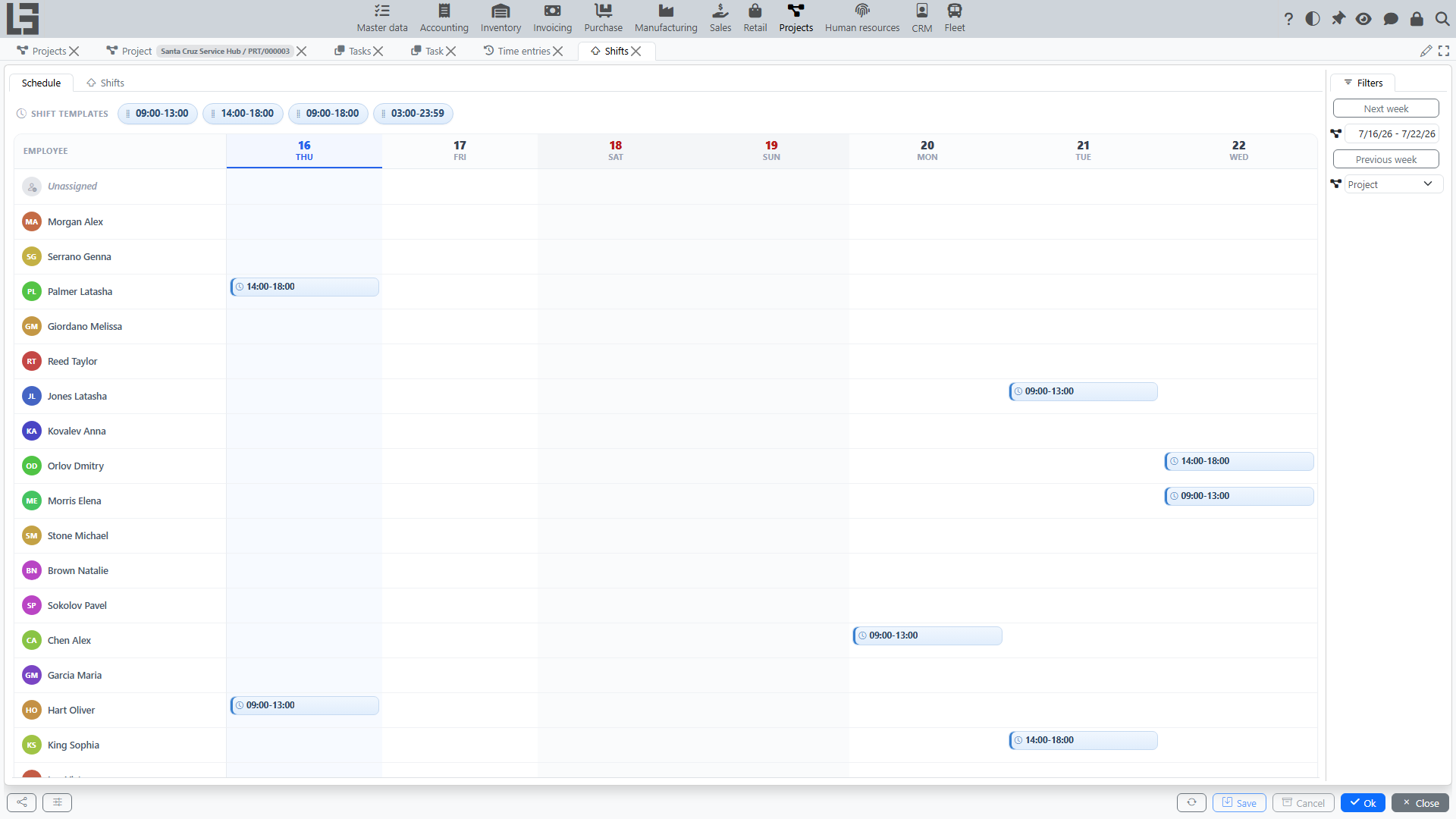
On the board you can:
- create a shift — drag a shift template from the templates row onto the cell for the required employee and day; the shift is created with the template's time interval;
- move a shift — drag an existing shift to another cell to change its employee and/or date;
- edit or delete a shift — click a shift to open it, then change or remove it.
The Schedule tab is convenient for visual weekly planning; the list tab is convenient for a flat, filterable view.
Shift templates
A shift template is a predefined time interval (for example, a morning shift 09:00–18:00). Templates speed up planning on the Schedule: you drag a template onto a cell, and the new shift takes its time interval from the template.
Shift templates are configured on the Settings form, on the “Shift templates” tab — see Settings.
Shifts and projects
A shift can be linked to a project. When it is:
- the shift appears in the Shifts block of the project card;
- the project list shows the number of shifts per project.
In the shift list you can also filter shifts by project.
Common situations
A shift is not visible in the list
The screen shows only the shifts of the selected week. Check the date interval at the top of the screen, or use Previous week / Next week.
No shift templates to choose from on the Schedule
Templates come from the “Shift templates” tab of the Settings form. If the list is empty, add the templates your organization uses — see Settings.