Activities
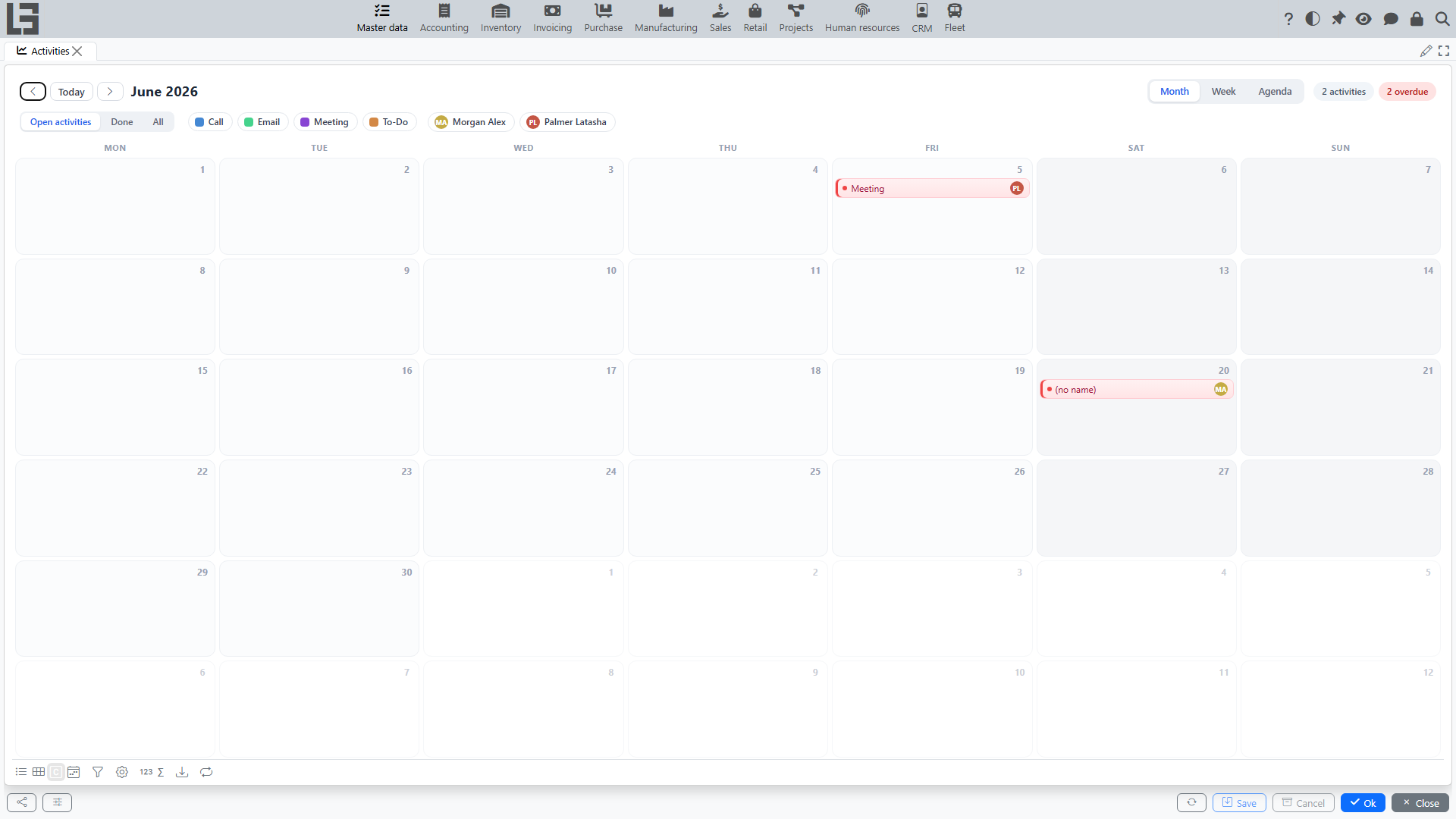
The “Activities” section is used to plan and track tasks, meetings, calls, and other actions.
Activities and Types
An activity can have a Type (e.g., Call, Meeting, Task). The type determines which time fields are shown: a type can use only a date, a date with a start Time, or a date with both Time and Till.
Activity types are configured on the Settings form, on the “Activity types” tab.
Creating an Activity
To create a new activity:
- Open the Activities section.
- Hover over the required day in the calendar and click the + button (New activity on this day) — the selected date becomes the due date.
- In the activity window, fill in the details:
- Type: The kind of activity (e.g., Call, Meeting, Task).
- Name: A brief description or title of the activity.
- Due date: The planned completion date. When you create the activity from a calendar day, it is that day; for activities created in other ways it defaults to 7 days from today.
- Time and Till: Start and end times (if enabled for the selected type).
- Assigned to: The employee responsible for the activity. It defaults to the current user (when the current user is an employee).
- Attendees: Partners participating in the activity (display-only).
- Object: A link to a related document or record (e.g., a specific Lead or Order).
- Description: Detailed information about what needs to be done.
Working with the Activity List
The Activities form provides a convenient view of all tasks:
- Views: Month and Week calendar views, plus Agenda — a chronological list of activities.
- Filters: By default, only Open activities are shown; you can switch to completed or all activities. You can also filter by Type and by assignee using the colored chips above the calendar.
- Navigation: Hover over an activity to show its popup card — from there you can open the edit form, jump to the linked Object, mark the activity as done, or reassign it (the picker offers active employees that already have open activities). Double-click an activity to open the edit form directly; drag it to another day to change the due date.
Completing an Activity
When you finish a task:
- Click the Done button.
- In the feedback window, enter the results of the activity (Feedback).
- The activity will be marked as completed.
Completed activities are highlighted in the list and are hidden when the "Open activities" filter is active.
Activities in Other Records
Activities can be managed directly from the cards of other objects (like Leads, Tasks, or Orders):
- New activities are created with the buttons named after activity types at the top of the tab.
- The dedicated tab lists the related activities that are not completed yet; already completed ones can be reviewed in the main Activities form or in the record’s comment history (where enabled).
- The list shows the type, due date, status, and how many days are left to complete the task.
- A badge on the tab shows the number of pending activities.
- When an activity is completed, a comment with the description and feedback may be automatically added to the record's history.