Manufacturing orders: list and card
Location
Open “Manufacturing” → “Operations” → “Manufacturing orders”.
What a manufacturing order is used for
A manufacturing order is the main manufacturing document. It is used to:
- record what has to be produced (or unbuilt/disassembled);
- set the planned quantity;
- specify the Bill of Materials (item structure) that is used to calculate materials;
- perform an availability check and reserve materials;
- record actual production and actual consumption;
- specify the Products location when the order is Done;
- monitor work order statuses directly from the order card.
Manufacturing orders list
The list is used to control current orders and quickly open the order card.
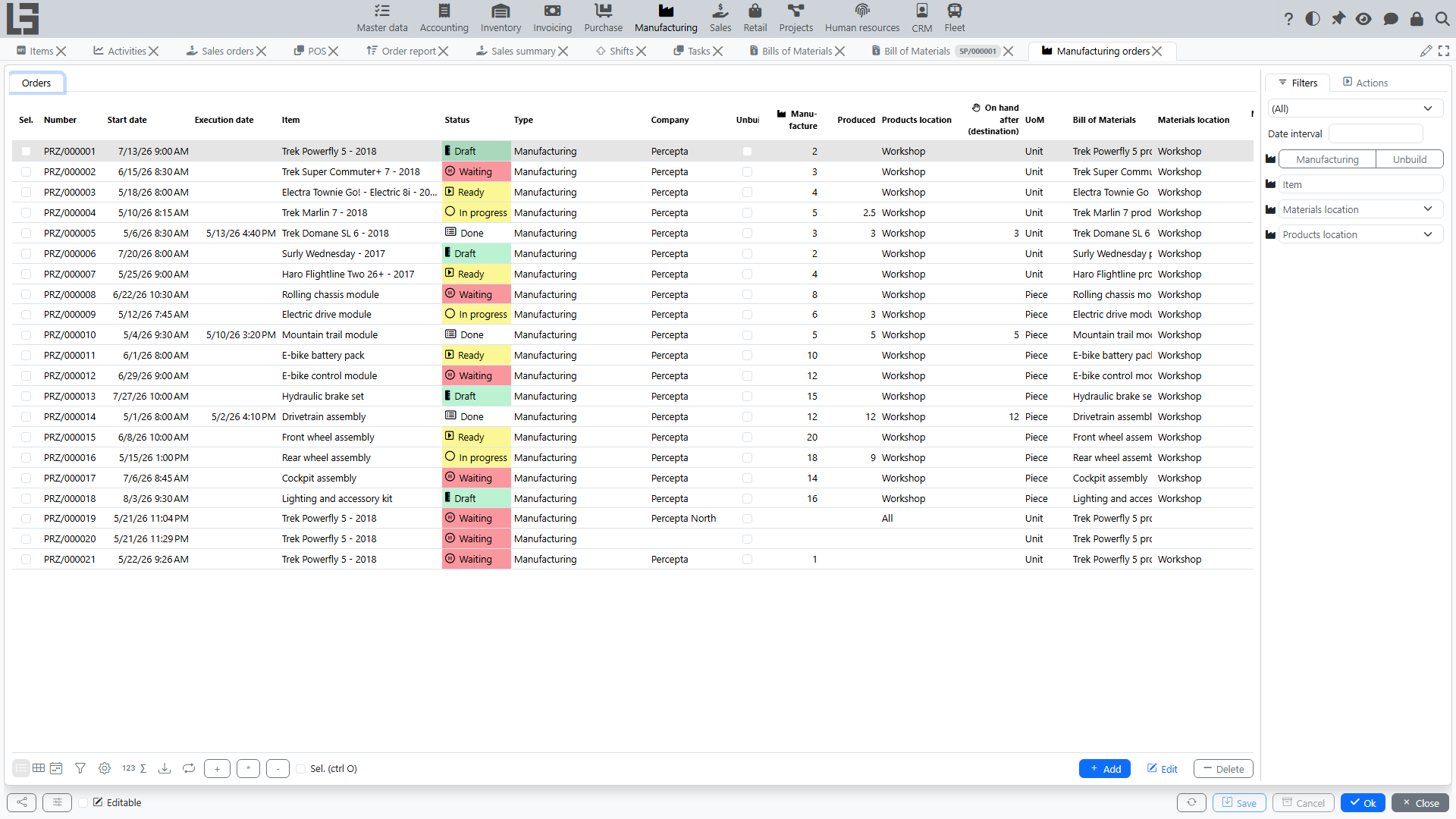
Typical columns:
- Number;
- Start date (planned) and Execution date (filled in when the order becomes Done);
- Item — what is produced;
- Type and Unbuild flag (comes from the type);
- Company;
- plan and actual: Manufacture (planned quantity) and Produced (actual), with the UoM;
- Products location and the calculated On hand after (destination) — the expected stock of the item at the products location after execution;
- Bill of Materials;
- Materials location;
- line counters: Material lines and Product lines;
- cost columns (see Costing): Cost, Extra cost, Total cost, plus Labor cost and Service cost when the corresponding contours are used;
- Sales order — a link to the source sales order, if the order was created from a sales order.
The row background reflects the order status (see statuses).
Filters
- a status filter group: Waiting, Ready, In progress, Done (plus the option to show all);
- a date range filter by the start date;
- right-pane filters by Type, Item, Materials location and Products location.
Selection and the Total tab
List rows can be selected with checkboxes. For the selected orders:
- bulk status actions are available: Mark as Todo, Check availability, Manufacture, Mark as Done;
- the Total tab appears: it aggregates the materials of all selected orders — one row per item with To consume, Consumed and Cost, and, for the selected item, the underlying material lines with their orders.
Create orders (bulk creation)
The Create orders action creates several manufacturing orders at once:
- Select a Type in the right-pane filter (otherwise the action reports “No production order type selected”).
- The Product selection dialog opens with all items that have a default Bill of Materials.
- Enter the Manufacture quantity for the required items; if needed, change the Bill of Materials per item.
- If a Products location filter is set, the dialog also shows the current On hand at that location, and the Fill negative action fills the quantities for items with negative stock.
- On confirmation, one manufacturing order is created per item, with the type, Bill of Materials, materials/products locations from the filters, and generated lines.
Create purchase orders for materials
From the manufacturing orders list you can also create purchase orders for the materials required by the selected manufacturing orders. The corresponding action (also captioned Create orders) appears once at least one order is selected.
- In the filters, set Materials location — only manufacturing orders for this location will be processed (otherwise the action reports “No materials location selected”).
- Select the manufacturing orders you want to procure materials for.
- Run the action.
The system:
- aggregates required materials (only consumption lines that are not yet linked to a purchase order) across the selected manufacturing orders;
- groups items by their default vendor and creates one purchase order per vendor;
- creates an additional purchase order (without a vendor) for items that have no default vendor;
- sets the chosen materials location as the location of each new purchase order;
- links every processed consumption line to the corresponding new purchase order line, so the relation between the manufacturing order and the purchase order is preserved;
- opens each created purchase order for review.
Manufacturing demand in purchase auto order
When purchase order auto filling is enabled, manufacturing demand is included in the purchase order Auto order calculation.
In the purchase order item grid, the system shows:
- Awaiting consumption — material quantities from manufacturing orders waiting for execution;
- Consumed — material quantities from Done manufacturing orders in the selected order period.
These quantities increase the suggested Auto order amount together with shipment demand, so purchase orders can cover both sales shipment needs and manufacturing material needs.
Manufacturing order card
The manufacturing order card is used to run the process step by step.
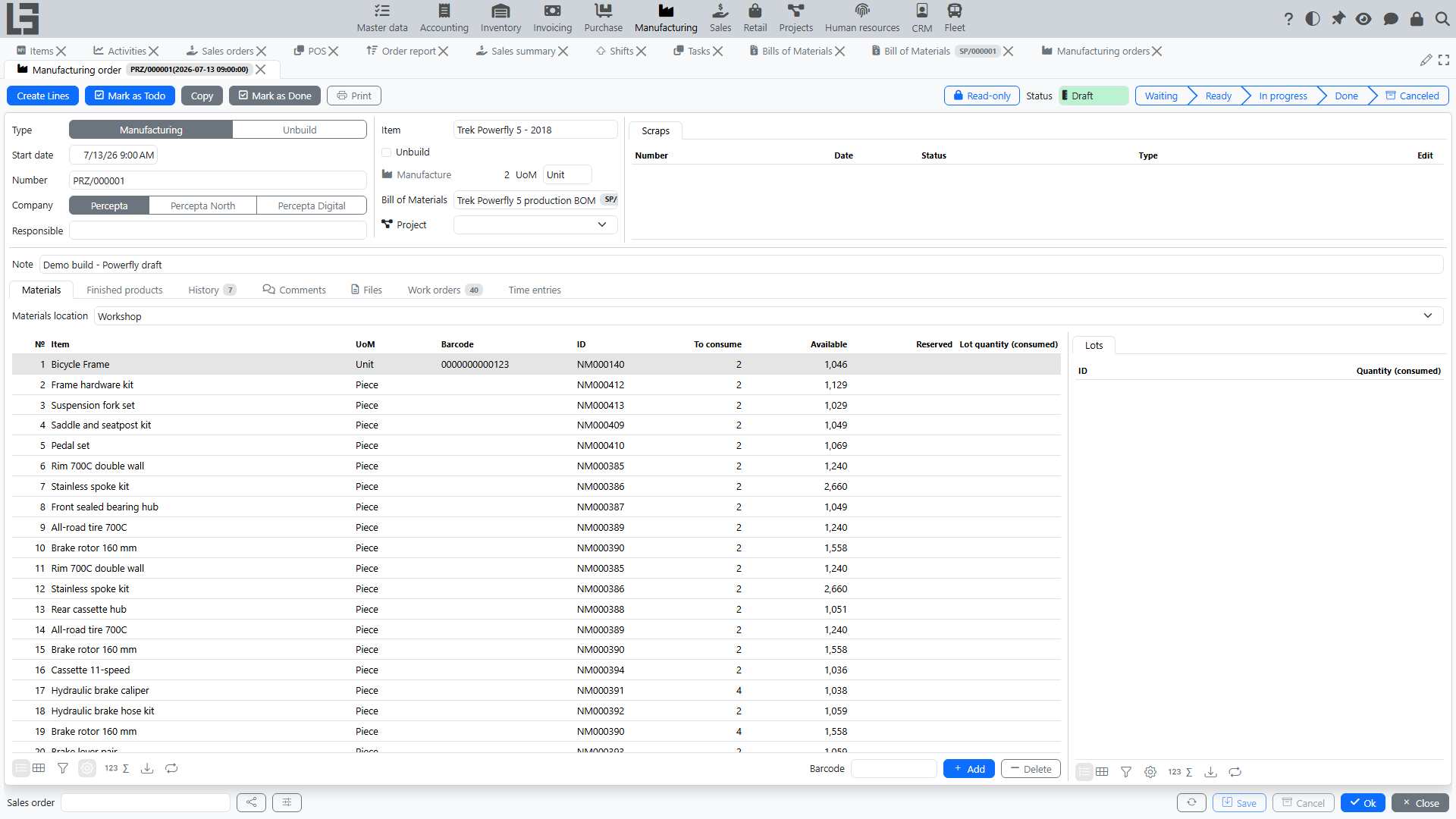
Main fields
- Type — defines behavior (for example, unbuild) and defaults; required;
- Start date — planned start date and time (defaults to the current moment);
- Number — required; generated by the numerator of the type;
- Company;
- Responsible — defaults to the current user;
- Execution date — appears when the order is Done;
- Item — the item being produced, with the read-only Unbuild flag of the type;
- Manufacture — the planned quantity, with the UoM; when the order is in progress, the actual Produced quantity is shown next to it;
- Bill of Materials — item structure; the default Bill of Materials of the item is substituted automatically;
- Note.
The current status is shown as a chain of stages (Waiting → Ready → In progress → Done, plus Canceled); the actions that move the order between statuses are described in the workflow.
Tabs
- Materials — the Materials location field and the material lines: №, Item, Description, UoM, Barcode, ID, To consume, plus the availability columns On hand / Expected / Available / Reserved and, when the order is in progress, the actual Consumed. If lots are used, a per-line lot panel is shown.
- Finished products — the Products location field and the output lines: №, Item, UoM, Barcode, ID, Manufacture (planned), Cost ratio and, when the order is in progress, the actual Produced. A per-line lot panel is shown for lot-tracked items.
- Work orders — the work orders of the order with their statuses.
- Comments, Files (attachments), and the status History.
When the Project Management contour is used, the card additionally shows the Project field and the Time entries tab (labor recorded on the order — see Costing).
The header also shows the linked Scraps block (see Scrap) and, in the footer, the Sales order link when the order was created from a sales order.
Bill of Materials item consistency check
If a Bill of Materials is selected, the system checks that the item in the Bill of Materials matches the order item. If the items do not match, the order cannot be saved.
Create Lines
In the Draft status, the primary action Create Lines generates the lines: it asks for the quantity (defaults to the current planned quantity) and fills the material and output lines from the Bill of Materials, including components of nested intermediate Bills of Materials. At the same time, work orders are generated from Bill of Materials operations, including operations from nested intermediate Bills of Materials.
Note: re-running the action deletes the existing lines and generates them anew.
Copy
The Copy action creates a new order in the Draft status with the same type, item, Bill of Materials, company, materials/products locations and lines (planned quantities only). Work orders are copied as well.
Print
The Print action prints a simple production job form: order number, start date, item and quantity, and the list of materials with quantities and the source location.
Typical scenarios
Create an order and prepare it to start
- Create a new manufacturing order.
- Fill in the type, item, and start date.
- Select a Bill of Materials (usually substituted automatically).
- Run Create Lines to generate material and output lines (work orders are generated at the same time).
- Run Mark as Todo, then Check availability to reserve materials.
Manufacture and mark as Done
- Run Manufacture and enter the produced quantity (the system distributes production and consumption proportionally).
- Manage work order execution (optional): on the Work orders tab use Start and Mark as Done to track operation progress.
- Adjust actual Produced / Consumed on the lines if needed.
- Run Mark as Done and specify the Products location.