Bills of Materials (item structure)
A Bill of Materials describes an item structure: which materials and in what quantities are required for production, as well as which by-products are generated.
In the system, a Bill of Materials is used as a source of planned norms: based on it, material and output lines are generated automatically in a manufacturing order.
Location
The Bills of Materials list is available in "Manufacturing" → "Operations" → "Bills of Materials".
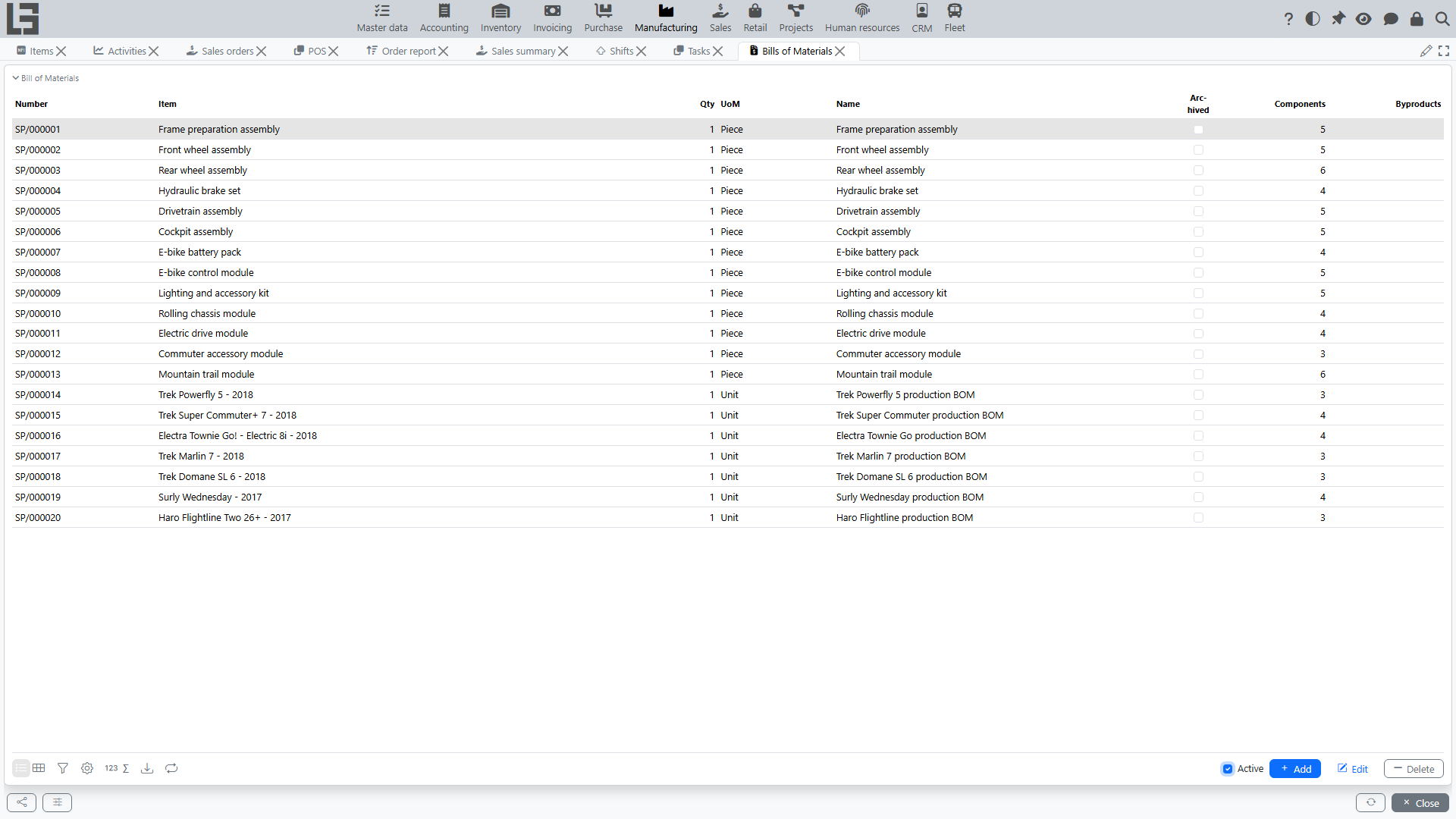
The list shows the Number, Item, Qty, UoM, Name, the Archived flag and the Components / Byproducts line counters. By default the Active filter hides archived Bills of Materials.
The directory of BoM operations is a separate item in "Manufacturing" → "Configuration" → "Operations".
What a Bill of Materials is used for
A Bill of Materials is used for:
- automatically filling material lines in a manufacturing order;
- calculating planned consumption and planned output;
- generating by-products during production;
- defining operation templates for work orders (work center, start time, duration);
- unbuild (disassembly) — usually using the same Bill of Materials;
- analyzing the item structure and planned norms and cost.
Bill of Materials card: main fields
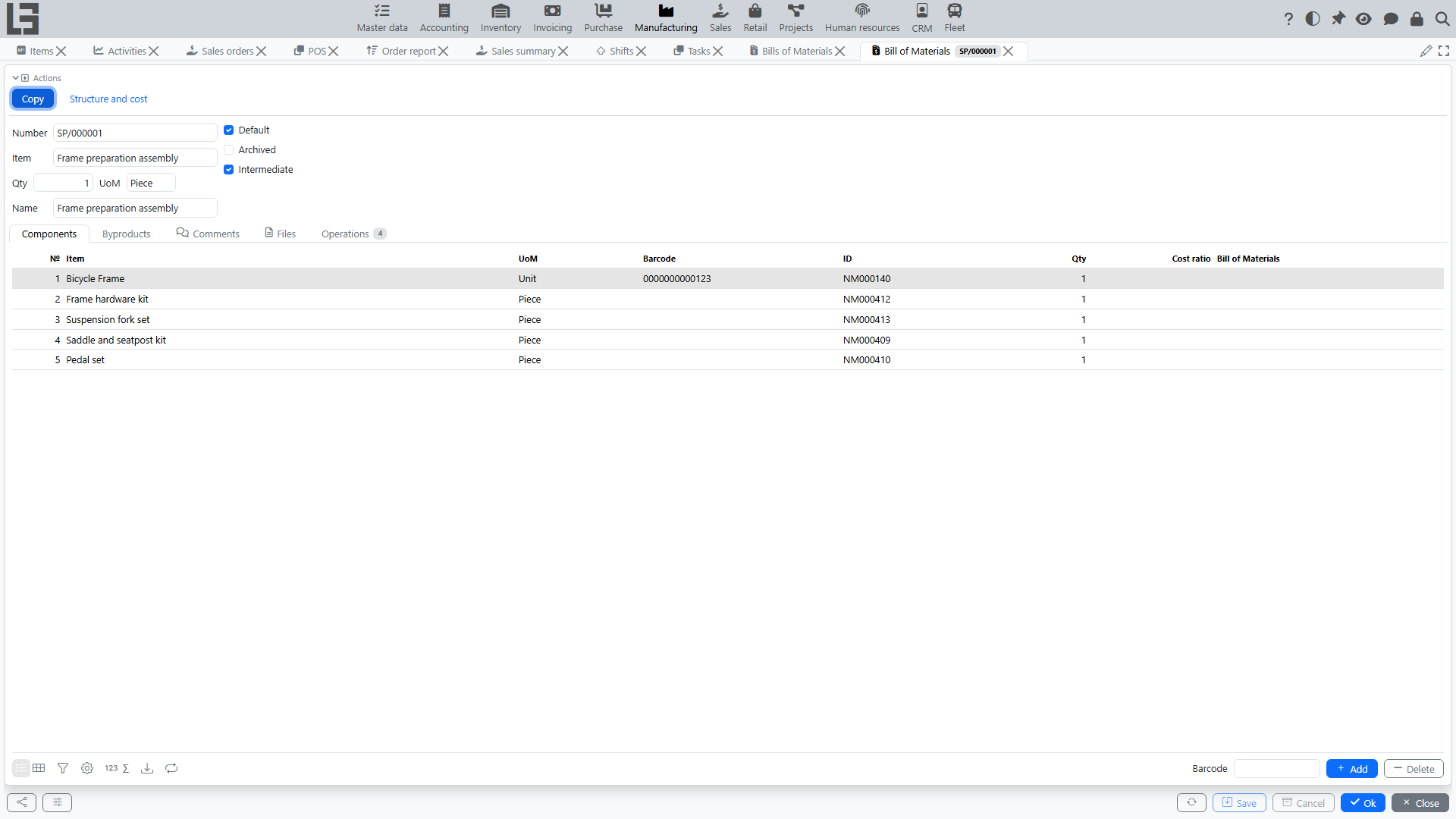
In the Bill of Materials card you typically set:
- Number — Bill of Materials identifier (required, generated by a numerator);
- Item — the item the Bill of Materials applies to (required);
- Qty and UoM — the base quantity for which norms are defined (for example, 1 pc, 10 pcs, 100 kg);
- Name — a free name/comment;
- Default — indicates that the Bill of Materials should be selected automatically in a manufacturing order for this item;
- Archived — indicates that the Bill of Materials is no longer used;
- Intermediate — marks the Bill of Materials of a semi-finished item as intermediate: when a parent order is generated, such an item is expanded into its own components instead of being consumed as a whole (see “Nested Bills of Materials” below).
Important:
- a Bill of Materials marked as Default must be active (not archived);
- if an item has no explicitly chosen default Bill of Materials, the most recently created active one for the item is used as the default;
- the card also has Comments and Files tabs.
Bill of Materials structure: tabs
Components
The “Components” tab contains material lines (what is consumed during production).
Each line contains:
- № — the line number;
- Item (material/component) with the reference UoM, Barcode and ID columns;
- Qty — the consumption norm for the base quantity of the Bill of Materials;
- Cost ratio — the cost distribution coefficient, used when the Bill of Materials is used for unbuild (see below);
- Bill of Materials — the nested Bill of Materials of the component (see “Nested Bills of Materials” below); by default the component’s default Bill of Materials is shown.
How to read component quantity
Component quantity is defined for the base quantity of the Bill of Materials.
Example:
- Bill of Materials quantity = 10 pcs;
- component A = 2 kg.
This means: to produce 10 pcs of the item, you need 2 kg of component A.
If the manufacturing order is for 25 pcs, the component plan will be calculated proportionally: 2 × 25 / 10.
Byproducts
The “Byproducts” tab defines by-products that are generated during production.
Each line contains:
- № — the line number;
- Product (what is additionally produced) with the UoM, Barcode and ID columns;
- Qty — the norm for the base quantity of the Bill of Materials.
How by-product quantities are calculated in the order — see By-products.
Operations
The "Operations" tab defines planned production steps used to create work orders.
Each line typically contains:
- Name - operation name;
- Work center - where the operation is performed;
- Start time - planned time of day;
- Duration - planned duration in hours.
You can also copy operations from another Bill of Materials directly on this tab. Use Copy existing operations, select one or more rows in the dialog, and confirm. The selected operations are added to the current Bill of Materials.
Nested Bills of Materials
A component line can reference its own Bill of Materials (by default, the component item’s default one; the component’s Bill of Materials must match the component item).
Whether a nested Bill of Materials is expanded is controlled by its Intermediate flag:
- if the nested Bill of Materials is marked Intermediate, the component is treated as a semi-finished good produced “on the fly”: when order lines are generated, the component itself is not added as a material — instead, its own components are added (recursively, with quantities recalculated through the nesting chain);
- if it is not marked Intermediate, the component is consumed as a regular material.
Work orders are also generated from the operations of nested intermediate Bills of Materials, so the full processing chain is planned in one order.
Structure and cost
The Structure and cost action on the card opens a form with the full (multi-level) component tree of the item:
- components are shown indented by nesting level, with the nested Bill of Materials, the effective Qty per base quantity;
- Product cost — the accounting cost of the component quantity;
- Components cost — the roll-up cost of the underlying components;
- the form has its own Print action.
This is a convenient way to estimate the planned cost of an item from the current component costs before any production takes place.
Using the Bill of Materials in a manufacturing order
Bill of Materials auto-selection
If an item has a default Bill of Materials, the system selects it automatically when you choose the item in a manufacturing order.
Item consistency check
In a manufacturing order, the system enforces that:
- the order item must match the Bill of Materials item.
If they do not match, the order cannot be saved.
Generating lines from the Bill of Materials
In the manufacturing order card there is an action to generate lines (“Create Lines”, available in the Draft status).
For regular production:
- Bill of Materials components generate material lines (components with a nested intermediate Bill of Materials are expanded into their sub-components);
- the order item generates an output line;
- Bill of Materials by-products are added to output lines;
- work orders are generated from Bill of Materials operations, including operations from nested intermediate Bills of Materials.
For unbuild (disassembly):
- Bill of Materials components generate output lines;
- the order item generates a material line;
- Bill of Materials by-products are added to material lines;
- work orders are generated from Bill of Materials operations, including operations from nested intermediate Bills of Materials.
Important: when the order lines are generated or recalculated, work orders are rebuilt from the current Bill of Materials operations, and generated work orders keep a link to the originating Bill of Materials.
For details about unbuild, see Unbuild (disassembly).
Cost ratio in the Bill of Materials
Component lines in the Bill of Materials can store a Cost ratio — a cost distribution coefficient.
It is used for unbuild:
- when unbuild lines are generated, coefficients from Bill of Materials components are copied to output lines;
- then the total unbuild cost is distributed across output lines using these coefficients.
For details about cost distribution, see Costing: how it is calculated.
Versioning and relevance
Recommendations:
- Do not edit archived Bills of Materials.
- When the item structure changes, create a new Bill of Materials (new number) and make it the default.
- Archive the old Bill of Materials so it is not selected for new orders.
Copying a Bill of Materials
When you copy a Bill of Materials (the Copy action), the system copies:
- the main fields, including the Intermediate flag;
- components (including the nested Bill of Materials links and cost ratios);
- by-products;
- operations (including work center, start time, and duration).
Mass entry via tables (import/export)
The system provides actions to import/export Bills of Materials and their lines to a spreadsheet file (they are located on the data migration form, not on the Bill of Materials card).
Separate operations are available:
- export/import Bills of Materials;
- export/import components;
- export/import by-products.
Typical scenario:
- Export a template.
- Fill in lines in the table.
- Import the file back.
Important: during import the system validates that items and Bills of Materials exist for the provided codes. If unknown codes are specified, the import is canceled.
Common mistakes
- The Bill of Materials is not selected automatically — the item has no active Bill of Materials (all are archived). If a wrong one is substituted, set the Default flag explicitly on the right Bill of Materials.
- The order cannot be saved after selecting a Bill of Materials — the order item does not match the Bill of Materials item.
- The norms in the order are “not what expected” — check the base quantity of the Bill of Materials (often it is defined not for 1, but for 10/100 units).
- A semi-finished component appears in materials instead of its components — the component’s nested Bill of Materials is not marked Intermediate.