Outgoing payments
An outgoing payment records money withdrawal from a company bank account or cash register.
Typical scenarios:
- supplier payment;
- refund to a customer;
- other payouts to partners.
Where to find it
Open: “Invoicing” → “Operations” → “Outgoing payments”.
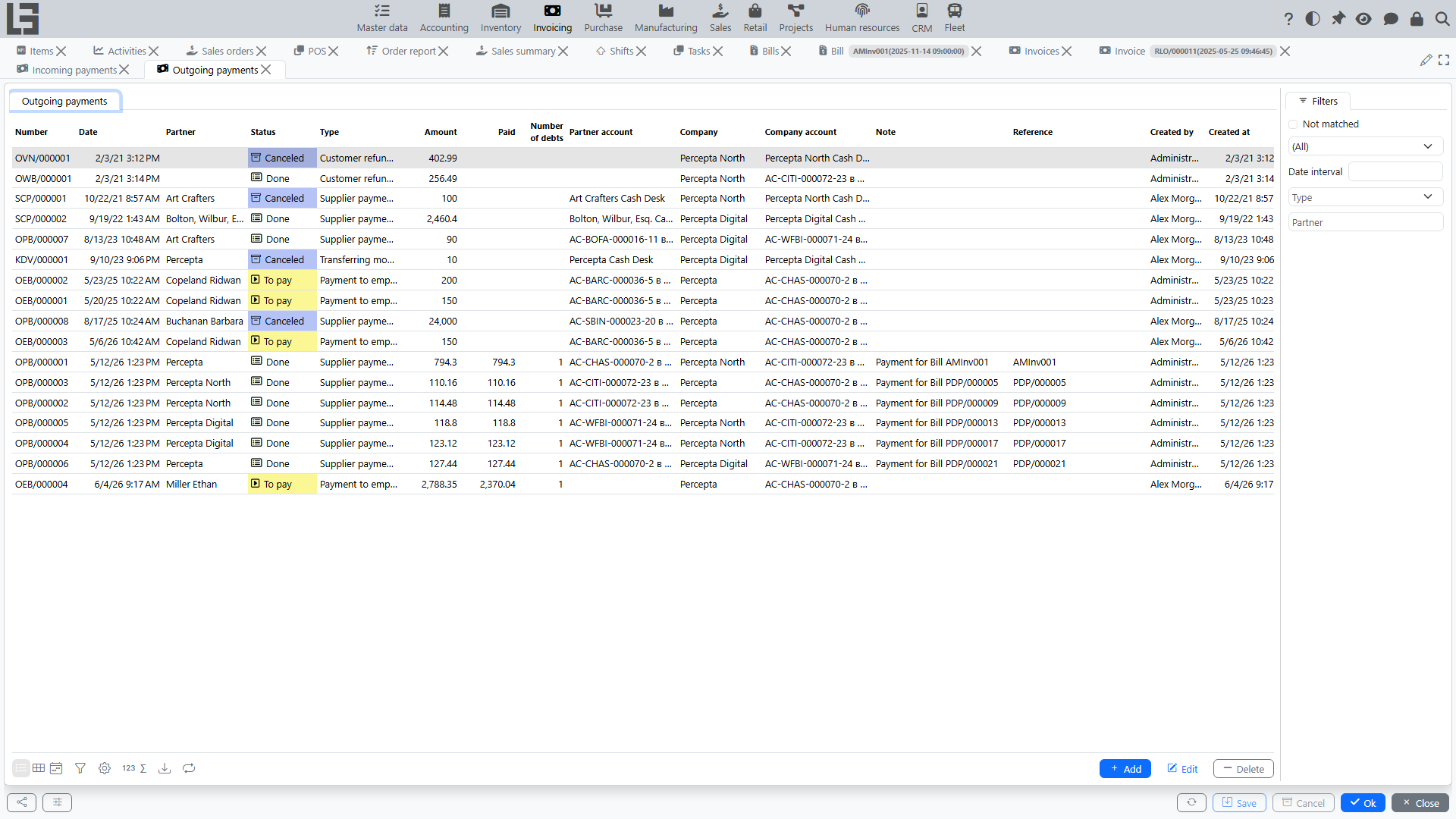
Creating an outgoing payment
- Open the “Outgoing payments” list.
- Click “Create”.
- Fill in the fields.
- If needed, perform payments matching with documents.
- Save the document.
Creating an outgoing payment from a bill
If you register supplier payments by documents, an outgoing payment can be created directly from the bill.
Typical flow:
- Open the required bill.
- Move the document to status “To pay” (if it is still Draft).
- Click “Register Payment”.
- The created outgoing payment card opens — verify the fields, adjust the amount if needed, and save.
What is typically filled automatically:
- partner and its account/cash register;
- company and its account/cash register;
- payment type (depending on bill type and settings);
- currency (if used);
- amount — usually equal to the current remaining amount due for the bill.
What happens with matching:
- the system immediately performs payments matching with this bill so that debt decreases;
- if a different matching is needed (partial payment, multiple payments), adjust it in “Payments matching”.
Important about statuses:
- the “Register Payment” action is available only when the bill is in status “To pay”;
- the created outgoing payment is created in status “To pay” (i.e., prepared for withdrawal confirmation). Confirm the actual withdrawal with "Mark as Done".
An outgoing payment created manually starts in Draft. The full flow is Draft → To pay → Done → Canceled: "Mark as Todo" moves Draft to To pay, "Mark as Done" confirms the withdrawal.
Main fields
Typically, an outgoing payment includes:
- Type — determines where the money is withdrawn from (bank/cash) and which accounts can be selected.
- Date and time.
- Number.
- Amount.
- Partner — who the money is paid to.
- Partner account/cash register (if used).
- Company.
- Company account/cash register — where the money is withdrawn from.
- Currency — derived from the company account/type.
- Analytic account (cash-flow item) — allowed for the chosen payment type.
- Note.
- Reference — a short reference string; if it contains a bill number, the payment auto-matches that bill.
Payments matching and debt closure
If you maintain settlements by documents, match the outgoing payment with documents so it closes debt for the selected documents.
In the outgoing payment card there is a “Payments matching” section:
- Matched — already linked amounts;
- Available — documents that can be paid (for an outgoing payment these are supplier bills);
- Match action (or double-click a row).
Matching is only allowed between documents of the same partner and company.
Partial payment
If the payment amount is less than the document amount, the document debt remains partially open — it can be closed by the next payments.
One payout for multiple documents
An outgoing payment can be matched with several documents (for example, paying several bills in one amount).
Overpayment
If you paid more than matched with documents, the remainder stays not matched until it is applied to another document of the same partner.
Linking to an incoming payment
If the payment type has a linked incoming type, an outgoing payment in To pay shows a "Create an incoming payment" action (or creates one automatically when the type has Automatically create incoming payment set). This is how internal transfers are recorded — a "transfer out" paired with a "transfer in".
Finding “not matched” payments
The outgoing payments list has a “Not matched” filter — it helps find payments that are not linked to documents yet (they still affect the partner's overall balance, but do not close any specific document's remaining amount).
Printing
The predefined print form is titled "Outgoing payment"; printing uses the Outgoing payment templates configured for the payment type.
See: Reports and printing.
Typical situations and solutions
The payment is entered, but document debt did not change
Usually you need to perform payments matching with documents.
Cannot select an account/cash register
Check that the payment type matches the selected account/cash register kind (bank/cash). If needed, change the type.
I don’t see the “Register Payment” button in a bill
This is usually caused by one of the following:
- the bill is not moved to status “To pay”;
- a suitable outgoing payment type is not configured for the bill type;
- there is no remaining amount due for the bill (already paid or amount due is zero).