Invoices
Where to find it
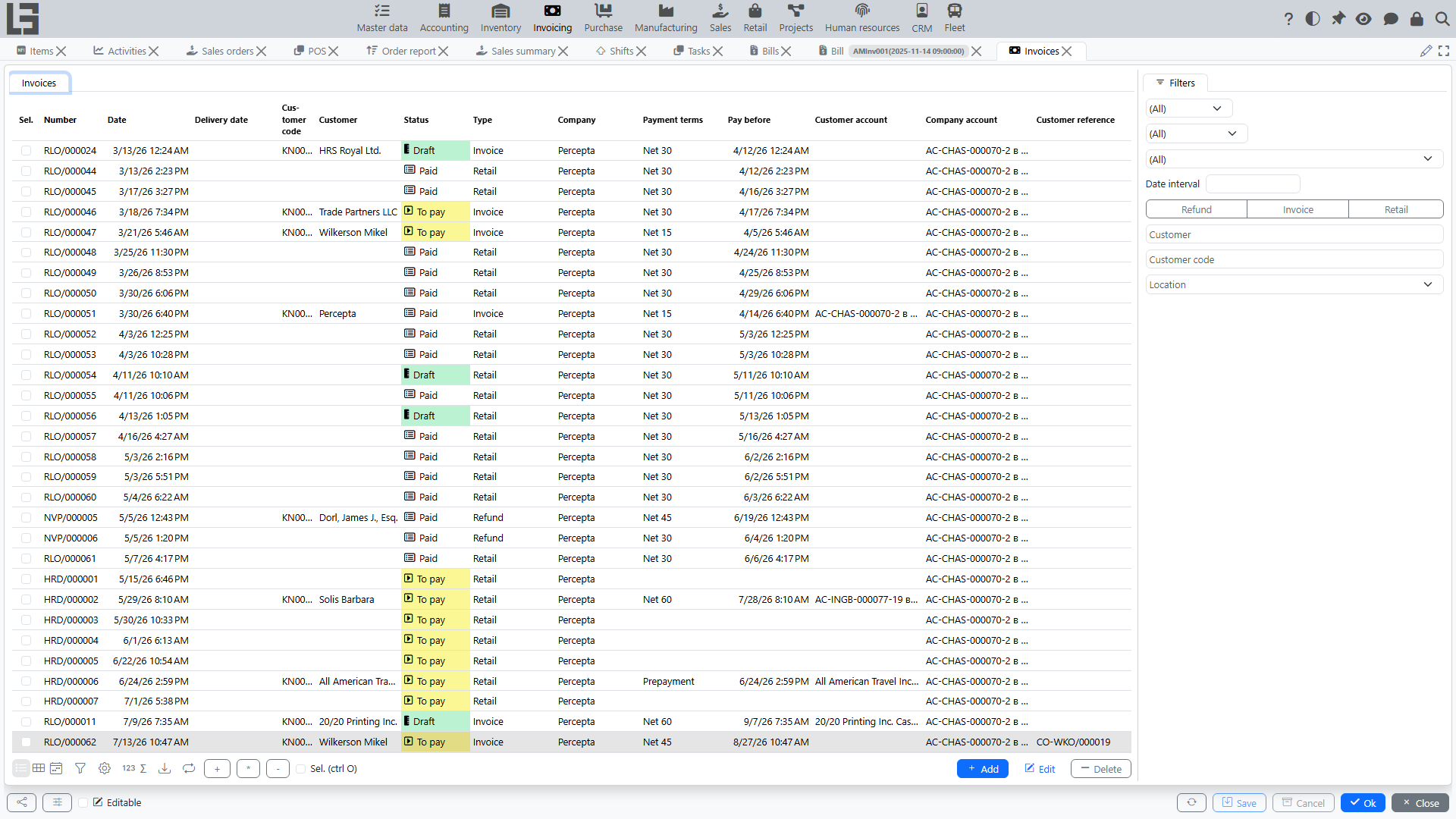
Open “Invoicing” → “Operations” → “Invoices”.
Purpose
An invoice records a sale in accounting:
- line amounts;
- taxes;
- customer debt;
- and, if the Inventory contour is enabled — relationship with shipments.
Depending on settings, an invoice can be:
- a document used to control debt (if debt accounting is maintained by invoices);
- a basis for creating a shipment (if Inventory is used);
- a document for printing primary forms (if print templates are enabled).
Invoice card
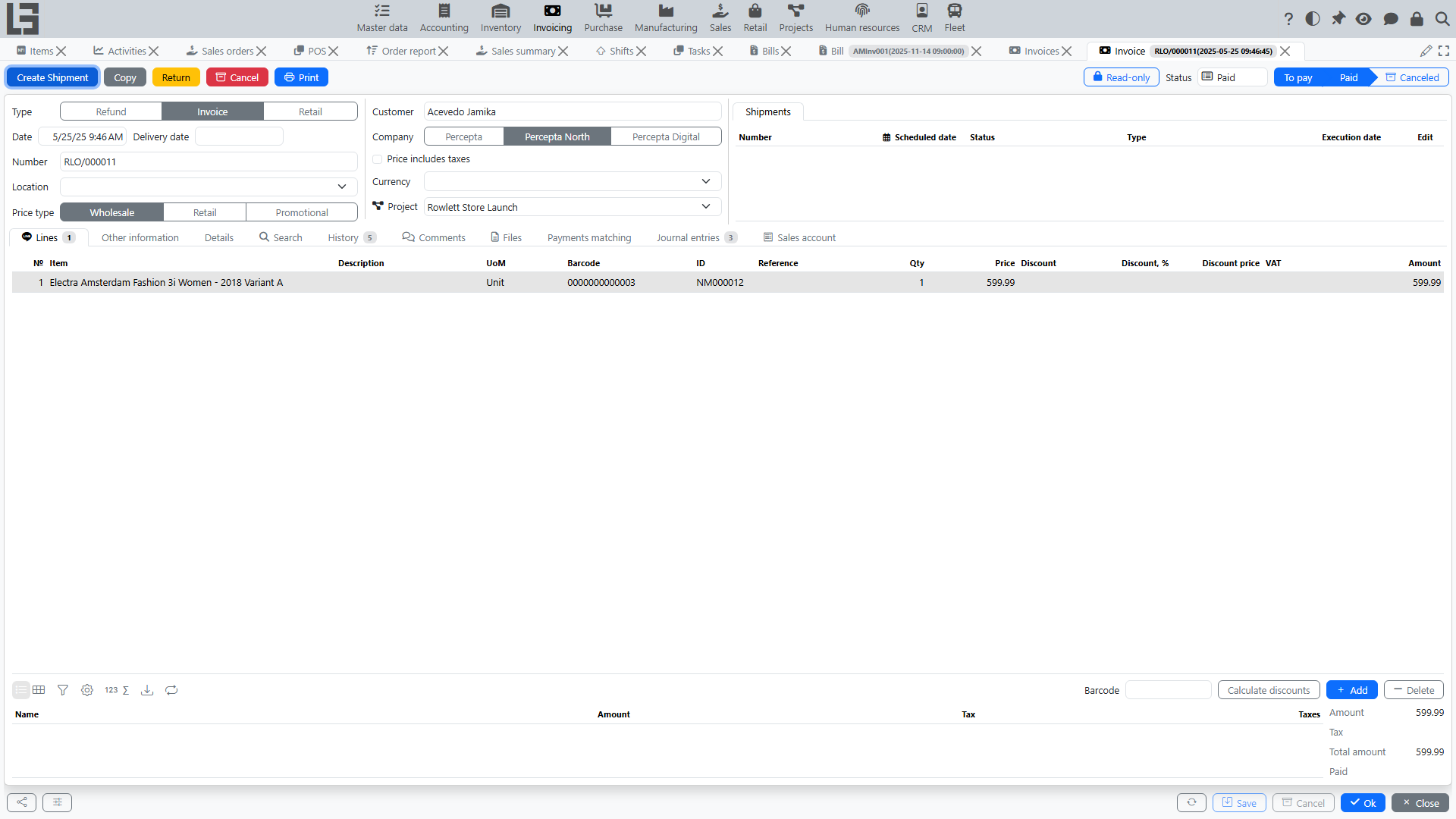
Main fields
- Type — the invoice type; presets the numerator, default customer, currency, payment type, whether the price includes taxes, and the shipment behaviour;
- Date and Number;
- Delivery date and Execution date (if used);
- Customer — the partner;
- Contract (if used);
- Location / delivery address (if Inventory is used);
- Payment terms and the computed Pay before date;
- Currency — defaults from the invoice type; the rate feeds the currency base amount;
- Our representative (defaults to the current user) and Customer reference;
- Note.
The card also has Comments, Files (Invoice file) and a status history timeline (time spent in each status).
Lines
- item/service;
- quantity and price;
- Discount, % / Discount price / Discount amount (if discounts are used);
- Taxes — the item's sales taxes are substituted automatically (see Taxes);
- Amount — the line base (gross when the type has Price includes taxes).
When Inventory is used and a shipment type is configured, the lines also show live stock figures — On hand, Expected, Available — with an Available filter, so you can check availability while composing the sale. If the customer uses a different unit of measure, extra partner UoM / quantity / price columns appear. Lot and pack tracking are supported when enabled on the invoice type.
Advance invoices
An invoice type can be flagged as Advance; the flag then carries to the invoice. Advance invoices are used to receive prepayments and later offset them against regular sales:
- a regular invoice shows To advance / Advanced figures and an Advance matching tab with Matched / Available advance invoices;
- use the "Match" action there to apply an advance to the invoice;
- an invoice cannot be offset against itself, and only invoices marked Advance can be applied as advances.
The invoices list additionally shows Advanced and To invoice columns.
Statuses
An invoice moves through Draft → To pay → Paid, and can be Canceled from To pay or Paid (implemented as cumulative flags, so the shown status is the highest one reached):
- in Draft, you can change the header and lines. "Mark as Todo" (shown only in Draft) moves the invoice to To pay;
- in To pay, the document is confirmed for further actions — printing, creating a shipment, registering payments. Only from this status is "Register Payment" available;
- in Paid, the document is considered settled. "Mark as Paid" sets it manually, and it is also set automatically once matched payments fully cover the invoice;
- Cancel excludes the document from the process and settlements (available in any status except Draft/Canceled).
Both "Mark as Todo" and "Cancel" are also available as bulk actions on the invoices list.
A "Copy" action creates a new Draft invoice with the same customer, company, type, note and lines.
Relationship with shipment
If Inventory is used:
- an invoice can create a shipment via the "Create Shipment" action, available only once the invoice is in To pay or later (a Draft invoice cannot create a shipment);
- a shipment can also be created automatically when the invoice reaches To pay, if the type has Automatically create shipment set.
See: Shipments from invoice.
Practical tip: if the shipment is created automatically from the invoice, first verify the lines (items, quantities, location/address), and only then move the invoice to To pay.
Payment
An invoice can be linked to incoming payments. Debt is calculated based on matched payments.
The card carries a Payments matching block with Matched and Available sub-lists; double-click an available payment (or use "Match") to net it against the invoice. If the payment amount is less than the invoice amount, it is a partial payment, and debt remains until full settlement; once fully covered, the invoice moves to Paid automatically. The invoices list shows a Paid column and Not paid / Paid / Partially paid filters.
Quick payment from an invoice
In some configurations, an incoming payment can be created directly from an invoice.
Typical flow:
- Move the invoice to status “To pay”.
- Click “Register Payment”.
- Review the created incoming payment card and save it.
The system typically:
- substitutes partner, company, accounts/cash registers and payment type (depending on settings);
- sets the amount equal to the remaining amount due;
- immediately performs payments matching with this invoice so that debt decreases.
See: Incoming payments.
Printing
The predefined primary form is titled "Invoice", and each invoice type carries its own list of Invoice templates. Depending on the configuration, the printout can additionally include the contract, the location, partner units of measure, and the paid/remaining amounts. Printing requires at least one enabled template for the invoice type; see Reports and printing.
See also: Payments, Debt and payment calendar.