Bills
Where to find it
Open “Invoicing” → “Operations” → “Bills”.
For the compact phone/tablet workflow, see Mobile bills.
Purpose
A bill is used to:
- record receiving goods/services from a supplier;
- calculate tax and the document total;
- control supplier payment and debt.
A bill can be used as:
- a basis for planning outgoing payments (if the payment calendar is used);
- a control point for supplier debt (if debt accounting is maintained by bills).
Bill list
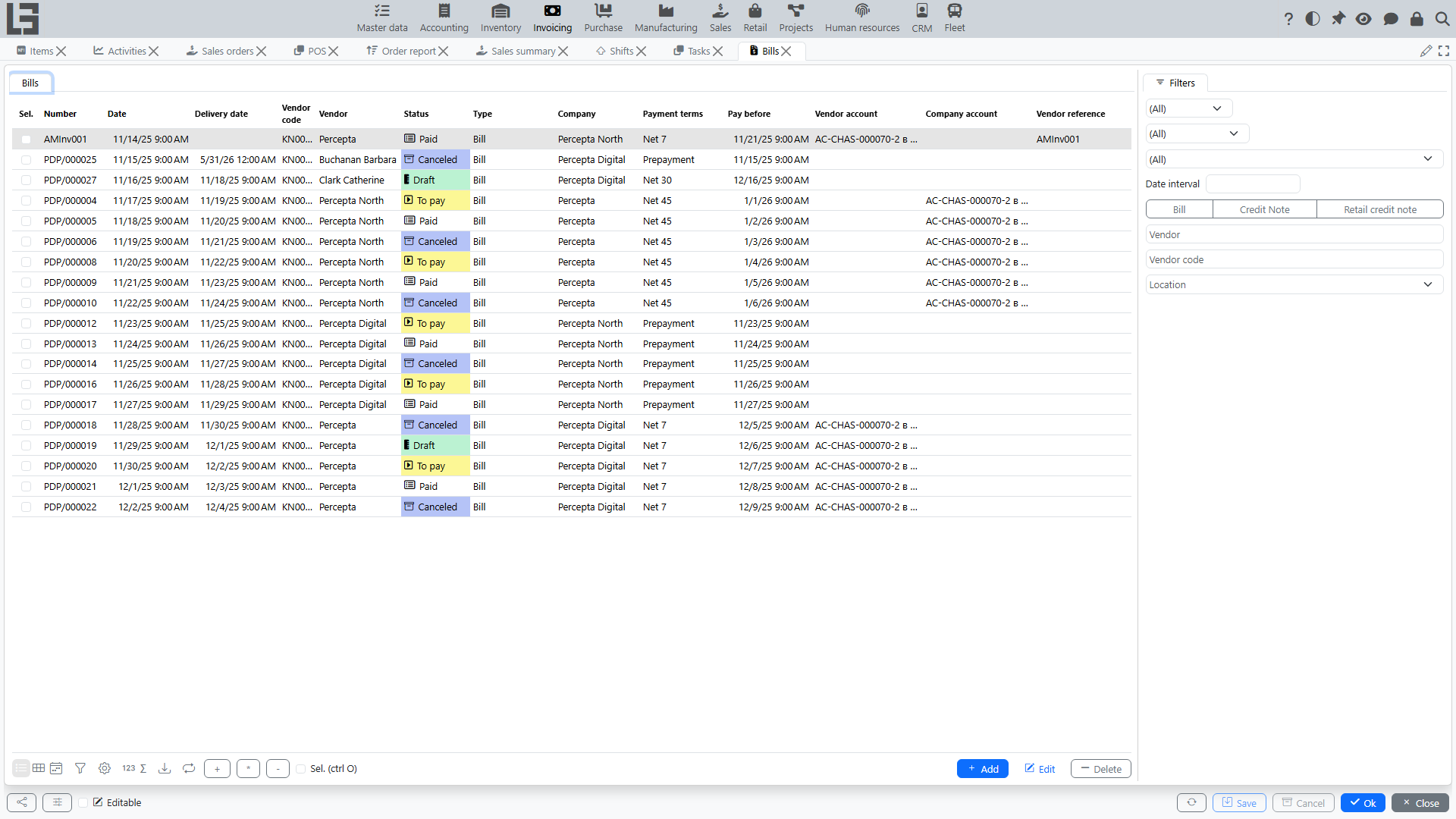
The list shows, among others:
- Number and Date;
- Delivery date and Pay before (the due date);
- Vendor and the bill Type;
- Company and the Payment terms;
- Vendor account / Company account (the accounts used for settlement);
- Vendor reference (the vendor's internal code for the document);
- Currency;
- Paid — the amount already covered by matched payments;
- Note.
The list also has ready-made filter groups Not paid / Paid / Partially paid for quickly finding documents by settlement state.
Bill card
Main fields
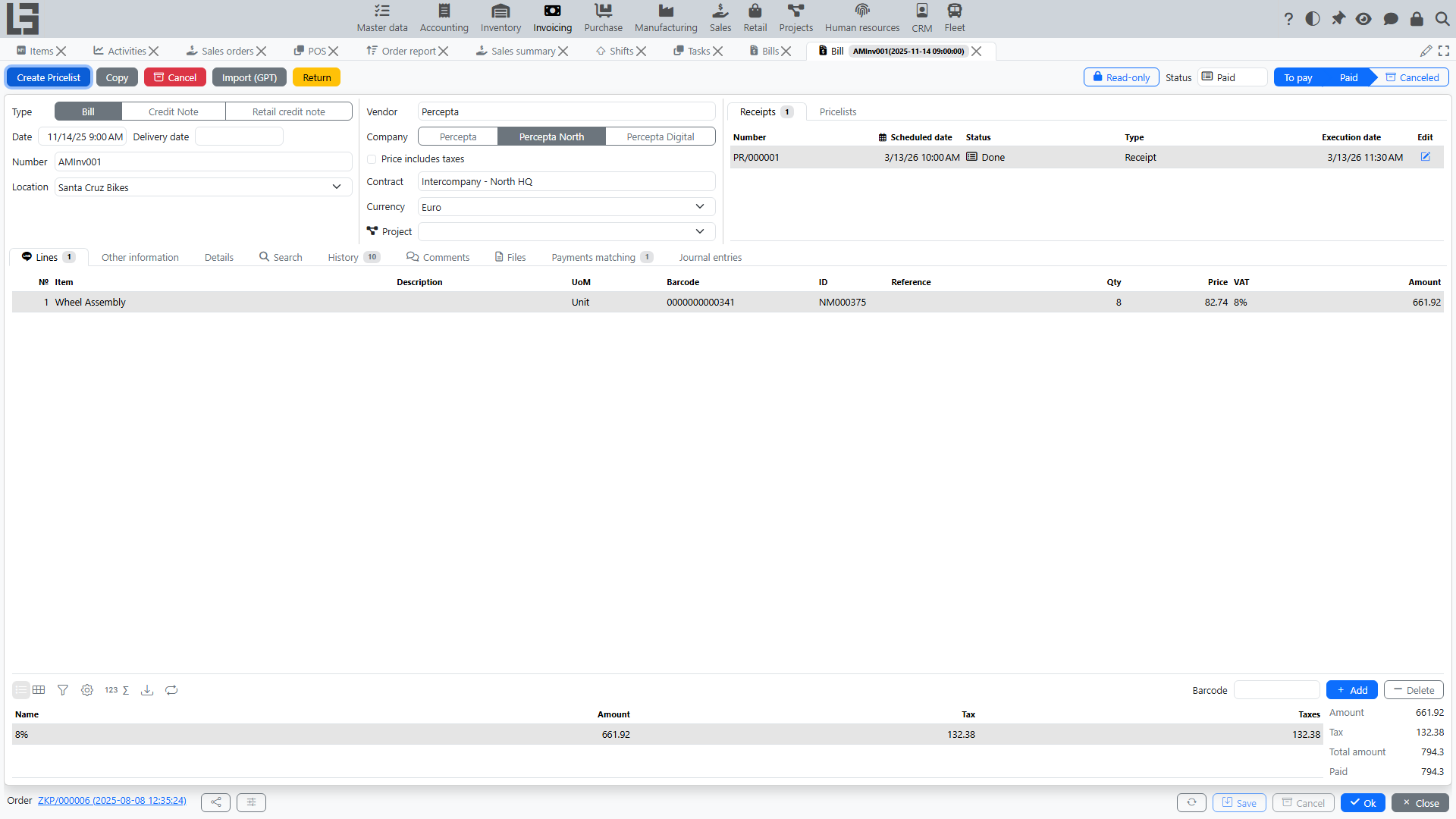
In the bill header you typically fill:
- Type — the bill type; it presets defaults (numerator, default vendor, currency, payment type, whether the price includes taxes);
- Date, Number;
- Delivery date and Execution date (if used);
- Vendor — the supplier partner;
- Contract (if used);
- Vendor account / Company account — the settlement accounts. The vendor account must belong to the selected vendor, the company account to the company;
- Payment terms (if used);
- Currency — defaults from the bill type; the exchange rate feeds the currency base amount;
- Vendor reference — the supplier's own document code, useful for search;
- Our representative — defaults to the current user;
- Note and a rich-text Details field.
The card also has Comments and Files tabs (Bill file) for attaching the source document and discussing it.
Payment terms
Payment terms carry a number of Days; when selected, the system computes the Pay before date (date + days) and stores it on the document. That stored date then:
- drives the payment calendar;
- determines whether the document is overdue.
See: Settings and directories, Debt and payment calendar.
Lines
Lines typically contain:
- item/service;
- quantity and price;
- Amount — the line base (
quantity × price); when the bill type has Price includes taxes set, this amount is gross; - Taxes — the tax applied to the line;
- optional Reference, Barcode and Category columns.
If taxes are configured, the tax is substituted automatically from the item/service (its purchase taxes) or from the document type. See Taxes.
When the vendor is measured in a different unit of measure than the item's base unit, extra partner UoM / partner quantity / partner price columns appear so you can enter the document in the vendor's units.
If lot/batch tracking is used, each line can carry lot quantities, and a barcode field allows adding lines by scanning.
If a default item is set on the bill type, it is automatically substituted into a new line when the item is not yet specified (similar to how the default vendor is substituted into the bill header). This speeds up entry for bill types where the same item/service is typically used.
Import from a file (GPT)
If the selected bill type has a configured prompt, the bill card shows an "Import (GPT)" action for importing data from a supplier document file with OpenAI.
What to prepare
- fill in the OpenAI API key and, if needed, create GPT configurations for model, reasoning, and additional prompt settings;
- configure the prompt in the bill type;
- check vendors, items, currencies, and taxes in master data in advance.
Preparation details: Settings and directories.
How to use it
- Open a bill that is available for editing.
- Make sure the current document changes are valid. Before import, the system tries to save the bill, and if validation fails, import does not start.
- Start the import and select the supplier document file. If several GPT configurations exist, select the one to use. The standard scenario expects one document per file.
- After import, review the header and lines of the bill and adjust the result manually if needed.
What is usually filled in
The system tries to determine from the file:
- in the header: number, date, delivery date, payment due date, vendor, and currency;
- in the lines: description, item/service, quantity, price, untaxed amount, and taxes.
Limitations and specifics
- New master data is not created automatically. OpenAI matches values only against data that already exists in the system.
- Item matching uses code, name, reference, and barcode. Vendor matching uses code, name, and address.
- If a value cannot be recognized or matched, the corresponding field may stay empty.
- When importing into a bill that already contains data, the header is overwritten with values from the file, and new lines are added to existing ones. Repeated import is more convenient into a new bill or after manual line cleanup.
- If the bill type does not have a configured prompt, the import action is hidden.
- If the OpenAI API key is missing or the external request fails, the system shows a message and does not perform the import.
Statuses
A bill moves through the statuses:
- Draft;
- To pay;
- Paid;
- Canceled.
Statuses affect editing and printing availability. Under the hood these are cumulative flags rather than a single field, so the status shown is the "highest" one reached.
- in Draft you can freely change the header and lines. The "Mark as Todo" action (shown only in Draft) moves the bill to To pay;
- in To pay the document is confirmed for further actions (payment registration, printing, corrections). The "Mark as Paid" action closes it;
- in Paid the bill is considered settled. This status is also set automatically once matched payments fully cover the bill;
- Cancel excludes the bill from accounting and debt. Cancel is available in any status except Draft/Canceled.
You can also flip these flags directly with the toggle buttons in the status group, and lock a document against editing with the manual lock toggle on the card.
A "Copy" action creates a new Draft bill with the same vendor, company, type, note and lines (dates and accounts are not copied).
Bills can also be created programmatically through an HTTP JSON import endpoint (importBill), separate from the file/GPT import described above.
Payment and debt
A bill can be linked to outgoing payments. Based on matched payments the system calculates:
- paid;
- debt.
The card carries a Payments matching block with two sub-lists — Matched payments and Available ones. Double-click an available payment (or use the "Match" action) to net it against the bill; the matched amount reduces the remaining debt and, once the bill is fully covered, its status flips to Paid automatically. Matching is only possible between documents of the same partner and company.
Quick payment from the document
In some configurations you can create an outgoing payment directly from the bill.
Typical flow:
- Move the document to status “To pay”.
- Click “Register Payment”.
- Review the created outgoing payment card and save it.
The system typically:
- substitutes the partner, company, accounts/cash registers and payment type (depending on settings);
- sets the amount equal to the current remaining amount due;
- immediately performs payments matching with this bill so that debt decreases.
See: Outgoing payments.
Partial payment
If the payment does not fully cover the bill:
- Paid increases by the matched amount;
- Debt stays positive until full settlement.
Overpayment / advance
If the transferred amount is greater than the bill amount, behavior depends on matching rules:
- the overpayment can stay as a not matched part of the payment;
- or be treated as an advance by partner/contract.
See: Payments.
See also: Debt and payment calendar.
Printing
If print forms are enabled in your configuration, the bill can be printed from the document card. The predefined layout is titled "Invoice", and each bill type carries its own list of Bill templates.
Printing availability most often depends on:
- status (for example, printing is available from “To pay”);
- the presence of at least one enabled print template for the bill type.