Receipts
Where to find it
Open “Inventory” → “Operations” → “Receipts”.
Purpose
A receipt records goods coming into a location.
The document is used to:
- record planned and actual quantities to receive;
- receive goods into a specific location;
- if needed — put goods away into zones/bins (bin-level storage);
- create stock movements and (if enabled) costing movements.
Receipt list
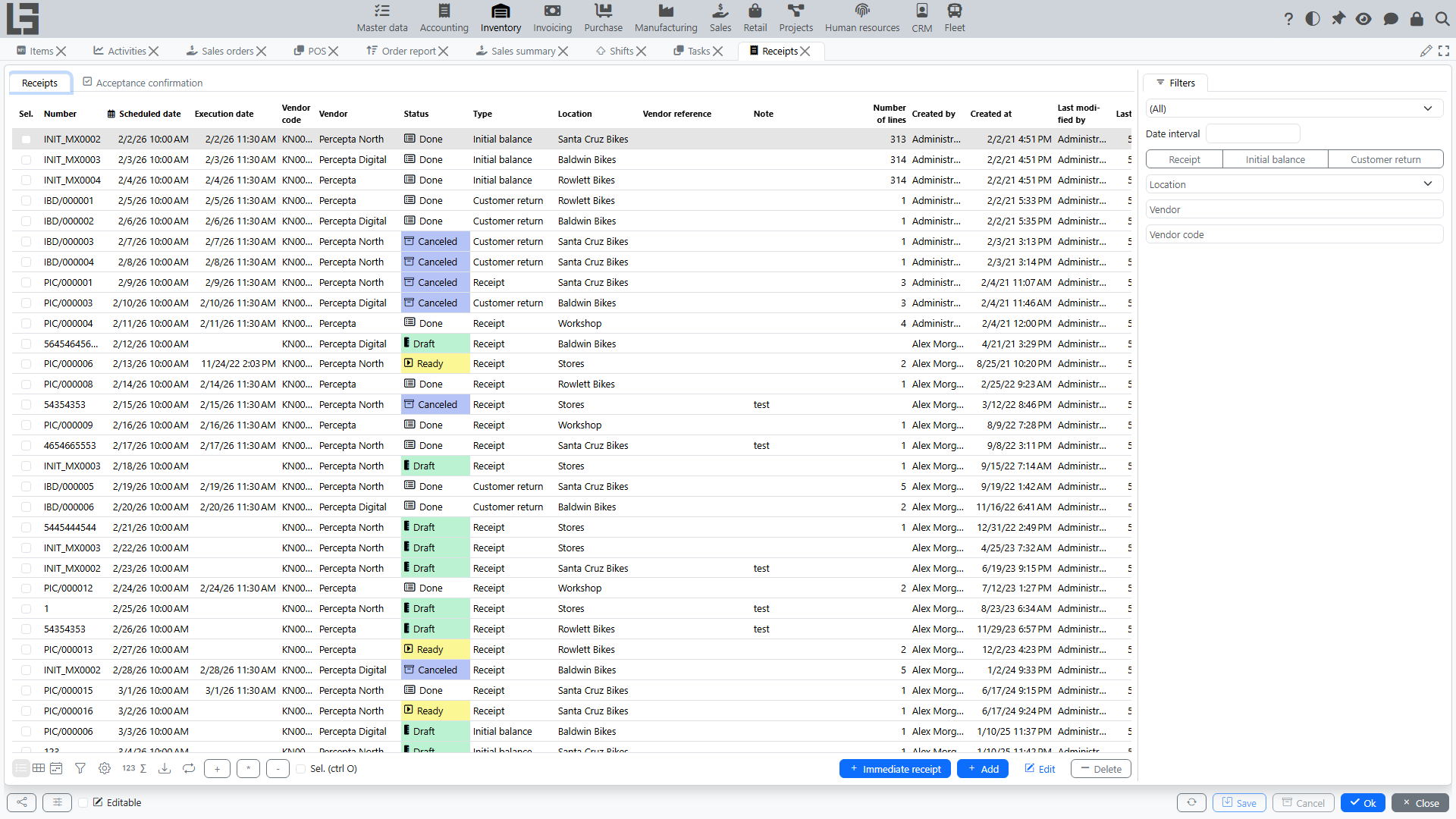
The list typically shows:
- number;
- scheduled date and time;
- receipt type;
- vendor (if used);
- location;
- note;
- line count.
Above the list there are filters by date interval, type, location and vendor.
List actions
- Create, open, delete documents (if allowed by status and permissions).
- Immediate receipt — creates a receipt with the Unplanned flag set; such a receipt skips the Ready step and can be marked as done directly from Draft.
- Bulk actions on selected documents: Mark as Todo, Mark as Done, Copy (copies the selected receipts to a new date) and Delete.
- If transfers with destination confirmation are used, the list also has an Acceptance confirmation tab showing incoming transfers waiting to be accepted at your location (see Shipments).
Receipt card
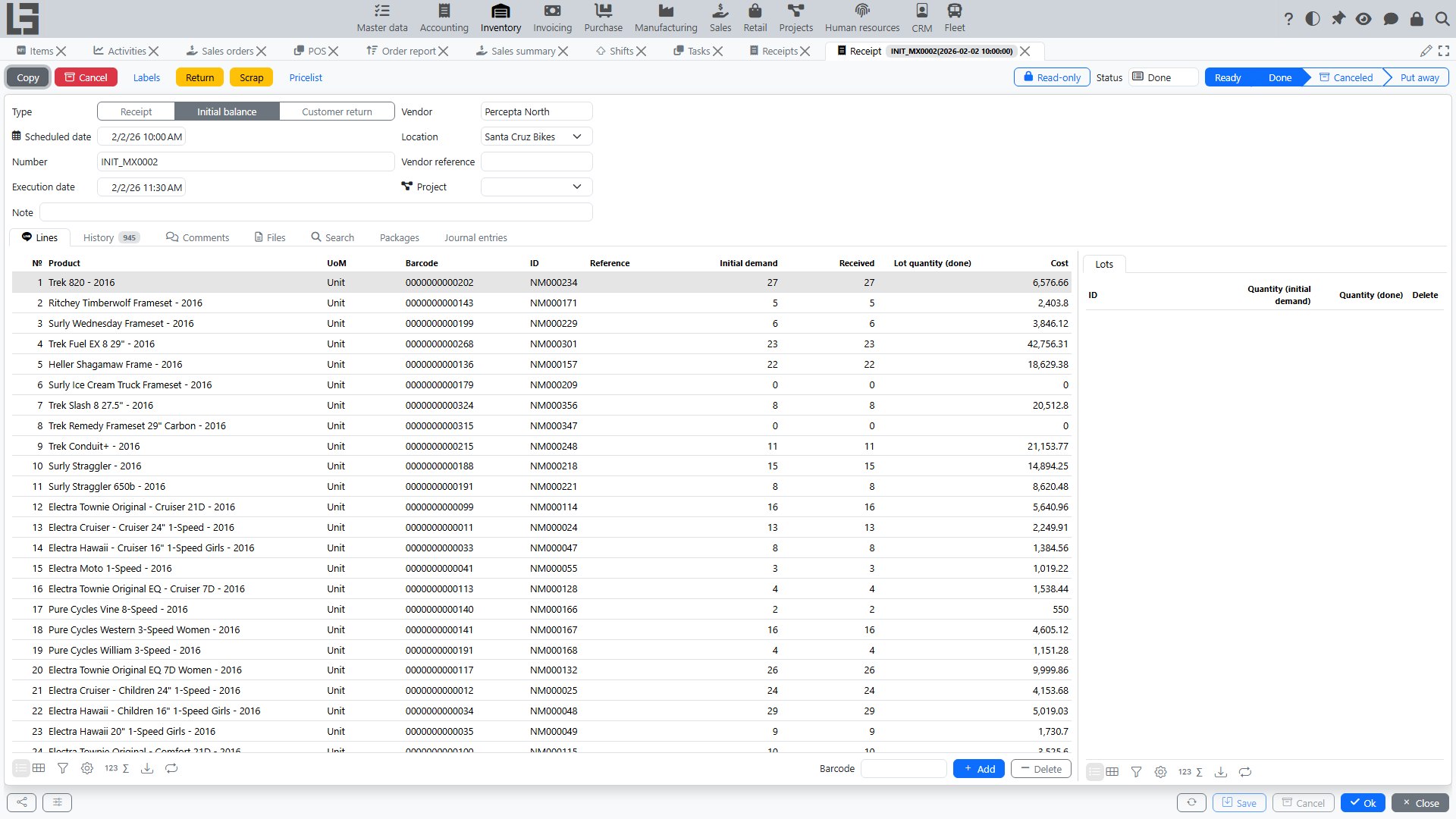
Header fields
In the header you typically fill:
- Type — affects numbering, default location and constraints;
- Scheduled date — planned receiving time;
- Number — generated by a numbering rule;
- Vendor (if used);
- Location — required;
- Vendor reference (e.g., supplier delivery note number — if used);
- Note.
The actual completion time (Execution date) is set automatically when the receipt is marked as done.
Practical tip: select type and location first — then it is easier to add lines.
Receipt lines
Lines contain items and quantities.
Typical line fields:
- Item — required;
- UoM — taken from the item;
- Barcode (if used);
- Internal code (if used);
- Reference/SKU (if used);
- Cost — shown when the receipt type has the Show cost price flag; lets you enter the inbound cost of the line manually (see item costing);
- packaging columns (Type of packaging, Number of packages, Quantity in package) — shown when the receipt type has the Show packages flag (see Number of packages).
“Initial demand” field
For receipts that are not executed immediately, the “Initial demand” field is used:
- it is the planned quantity for the line (the actually received quantity goes to the Received column);
- the field can be highlighted in draft to remind to fill it.
Constraint:
- the value must be between
0and the maximum quantity defined in the receipt type; - if exceeded, the document cannot be saved.
“One line per item” constraint
For some receipt types, a rule can be enabled:
- the same item cannot be added in two lines;
- when adding a duplicate, the system shows an error.
Search tab and barcode entry
The receipt card has a Search tab for fast line entry:
- products are searched by category and attributes, with live on hand / expected / available quantities shown;
- the initial demand or received quantity can be entered right from the search results — the corresponding line is created automatically;
- the Lines tab also has a barcode input field: scanning a product barcode adds a line (or increments the quantity of an existing one).
Other tabs
Besides Lines, the card has History (change log: who and when changed status, dates and lines), Comments (rich-text comments with mentions) and Files (attachments). When the corresponding features are enabled, the Lots and Put away panels and the Packages tab appear (see below); with the Accounting module a Journal entries tab shows the document's postings.
Statuses and stages
Below is the status set as it follows from the source code.
- Draft — data entry.
- Ready — the document is marked for execution.
- Done — the receipt is confirmed; completion date is recorded.
- Put away — put-away into child locations.
- available only if the receipt type enables put-away;
- the system checks that the target location is a child of the document location and that the total put away does not exceed the received quantity.
- Canceled — the document is Canceled.
Status transition actions
The receipt card has the following action buttons that move the document between statuses:
- Mark as Todo — moves the document from Draft to Ready (also available as a bulk action in the receipt list). For receipt types with the Increase available stock flag, a receipt in Ready increases the expected quantity in the reservation ledger, so the incoming goods already count towards availability.
- Mark as Done — confirms execution and moves the document to Done; the execution date is set automatically. The button is shown when the document is in Ready (the usual flow is Draft → Mark as Todo → Ready → Mark as Done). For immediate receipts — those whose Unplanned flag is set on the receipt itself (also produced by the Immediate receipt action in the receipt list) — the same button is also shown directly from Draft, since these receipts skip the Ready step. A bulk action of the same name is available in the list. A helper command Fill done copies the initial demand into the received quantity for all lines at once. If the received quantity differs from the planned one, the system warns about the difference — unless the Do not check received quantity flag is set on the receipt type.
- Put away — for receipt types that support put-away, moves the document from Done to Put away after the put-away lines are filled in.
- Cancel — moves the document to Canceled.
- Copy — creates a new draft receipt with the same header and lines.
Put away (bin-level storage)
If bin-level storage is used, after receiving you perform put-away into bins:
- the Put away tab lists, per line, into which child locations the received quantity is placed;
- the Put away (+) helper fills the remaining quantity;
- when lots are used, put-away can be detailed by lot (the Select action pre-fills the lots from the received quantities).
Recommendation: complete the receipt first (confirm the fact), then do put-away — this makes variances easier to control.
Lots on receipts
When lot accounting is enabled for a product, the receipt card gets a Lots tab:
- for each line you specify lots and their quantities;
- the Generate action creates lots automatically using the numerator and prefix configured on the item category. For products with Serial numbers enabled, one lot is generated per unit (quantity 1 each); otherwise a single lot receives the whole remaining quantity;
- scanning a lot barcode assigns the lot to the line; unknown barcodes create a new lot automatically;
- lot labels can be printed per line (see lots and packages).
Packages on receipts
If the package directory is used, the card gets a Packages tab where existing packages are linked to the receipt (Add to / Remove). The package lines are shown for reference and traceability; stock is still posted from the receipt's own line quantities.
Returns to the supplier
If the receipt type is linked to a return shipment type (the Return section in the type settings), a Return action is available on active receipts:
- it opens a new return shipment pre-filled with the receipt's location and items;
- the Returned column on receipt lines shows the quantity already returned, and the Refunds dialog lists the related return shipments;
- with the Check returned quantity flag on the receipt type, the system forbids returning more than was received.
Creating receipts from purchase orders
If the Purchase module is used and the purchase order type is linked to a receipt type, confirming a purchase order automatically creates a linked receipt in Ready status with the ordered lines. The receipt list then shows the source Order, and the order card shows its Receipts. Constraints can forbid locking orders that have active receipts or are not fully received.
Printing
- Print — prints the receipt using a configurable template (templates are assigned per receipt type in the settings).
- Labels — prints item labels for the received lines (one label per received unit).
Initial stock import
For system launch, initial on-hand balances can be imported from Excel (Import on hand on the data migration form): the file lists location, product and quantity (optionally cost), and the system creates initial receipts. The reverse Export on hand action exports current balances to Excel.
Typical issues
- Cannot save a line — “Initial demand” is out of the limits defined in the receipt type.
- Cannot add the same item in a second line — “one line per item” is enabled in the receipt type.
- Cannot complete — location is missing or there are lines without quantity.
- Actual quantities do not match — check line input and units of measure.
- The system warns about a quantity difference on completion — the received quantity differs from the planned one; either fix the quantities or enable Do not check received quantity on the type.